How to connect Atlassian to an AI agent: what GTM AI agents can do with Atlassian in Day AI
Updated
The short answer. To connect Atlassian to an AI agent, have your Atlassian organization admin allow the agent on the Atlassian MCP server, then sign each person in with their own Atlassian account, so GTM AI agents can search and update Jira and Confluence and read Loom transcripts, which brings what your product team writes down into AI for GTM. Day AI connects this way under Settings > Connectors: there's no Day AI workspace setup, your Atlassian org admin allows day.ai once, and each person clicks Connect, signs in and chooses which Atlassian sites and products to share, whether you use Day AI in place of your CRM or on top of Salesforce or HubSpot.
Say you're an account executive, and it's 11:05 on a Tuesday. On the call that just ended, the prospect's operations lead asked, for the second time, whether bulk editing is coming. You open Day AI and ask your agent what product has said about it. The agent searches Jira and finds the bulk-edit issue, opens the Confluence spec for it, and reads the action items from the Loom walkthrough the product manager recorded last week. It tells you the issue is in progress and which part the spec says comes first. Then it proposes an update to the Jira issue noting that this prospect asked for it on today's call. The update waits in the chat with Approve and Deny buttons. You approve it, and the product team sees the request on the issue they're already working from. Your follow-up email can now say something true about timing.
Where the usual answer goes wrong. Most writing about Jira and AI is for engineers: summarize the sprint, draft the ticket. A go-to-market team needs it the other way around: what did product decide, and does the customer's request reach the people building it? A rep who answers from memory over-promises, and a request posted in a channel gets lost by Friday. Day AI starts from the customer conversation and reads Jira, Confluence and Loom live, so the answer a rep gives matches what product wrote, and the request lands on the issue with a person's approval. You may already forward feature requests into a Slack channel. That was a fine start; now they reach the issue.
The ask, look up, log loop for Atlassian, with Day AI
Every product question from a customer follows the same path: someone asks, someone finds the answer, and the ask gets recorded where product will see it.
- Ask: the question starts with a customer. A rep needs the question in the customer's words, not a paraphrase. In Day AI, the agent reads the call, email or Slack thread where the customer asked, so it knows exactly what was requested and by whom.
- Look up: read what product actually wrote. The answer is usually in a Jira issue, a Confluence page or a Loom walkthrough. In Day AI, the agent searches Jira and Confluence and reads Loom transcripts, comments and action items live, within your own Atlassian permissions.
- Log: put the request on the issue. A request in a side channel doesn't change a roadmap. In Day AI, the agent proposes the Jira or Confluence update in chat, and it waits as an approval card until you approve it.
How to connect Atlassian to Day AI
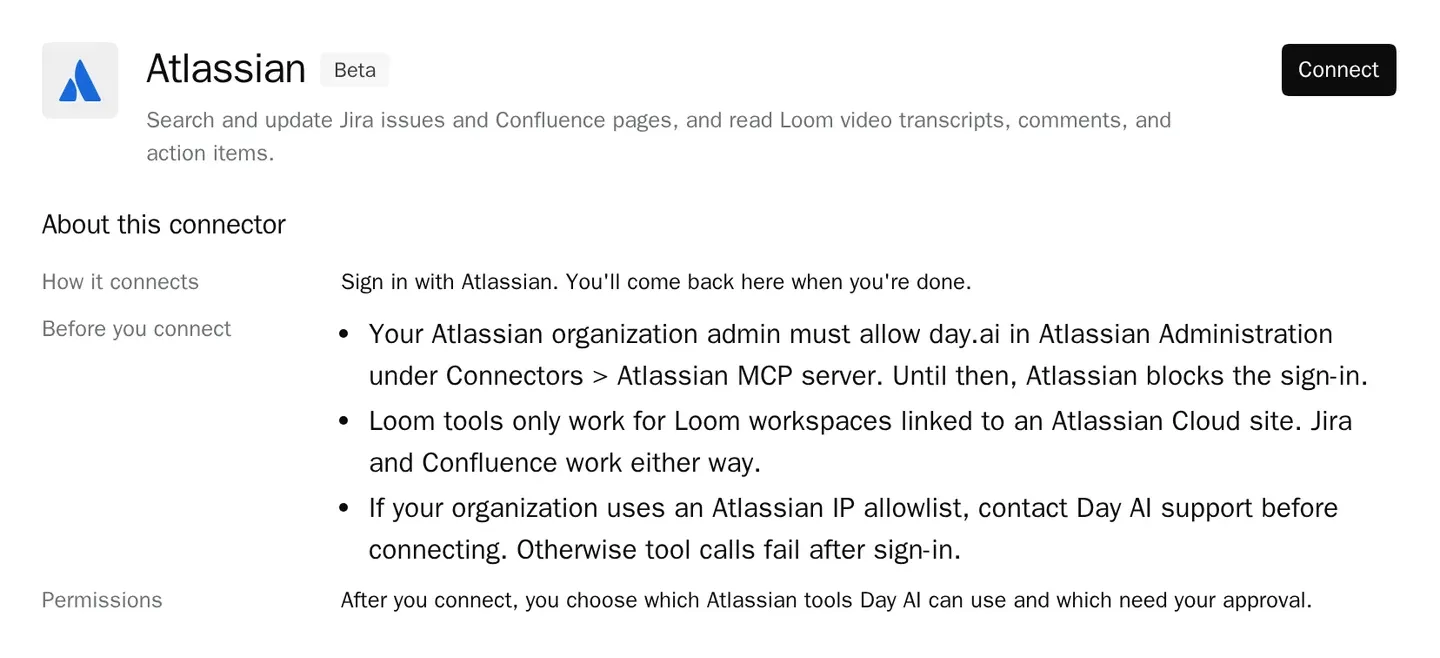
The Atlassian connector in Day AI covers Jira, Confluence and Loom in one connection.
Step 1: Your Atlassian org admin allows day.ai for Day AI
Atlassian lets only approved domains connect to its MCP server. Before anyone connects, ask your Atlassian organization admin to add day.ai in Atlassian Administration > Connectors > Atlassian MCP server. If your organization uses an Atlassian IP allowlist, contact Day AI support before connecting so Day AI's requests are allowed too. Day AI lists these requirements when you click Connect, so the person connecting sees them first. Everything else Day AI connects to is on the Day AI integrations hub.
Step 2: Connect Atlassian in Day AI with your own account
Open Settings > Connectors, find Atlassian, and click Connect. Sign in with your Atlassian account, and on Atlassian's consent screen choose the sites and products to share. For Loom, use a Loom workspace linked to an Atlassian Cloud site; Jira and Confluence connect either way. Your agent then sees and does only what your existing Atlassian permissions allow. To make this a habit across the team, see how to get feature requests from sales calls into your backlog.
Step 3: Set Atlassian's tool permissions in Day AI
Open the connector's Tool permissions, grouped under Read-only and Write & delete, each with Set all. Reads start at Always allow and writes at Needs approval. Your Atlassian admin can turn groups of tools on or off for the organization, such as Loom reads or Jira writes, so the list you see follows those choices. Atlassian's general-purpose execute tools (execute, executeRead, executeWrite and executeDestructive) can dispatch other actions, so set each to Needs approval or Off; they always ask before each use.
Step 4: Ask your Day AI agent about Jira, Confluence and Loom
Ask in chat. "Is there a Jira issue for the audit-log export the prospect asked about this morning, and what's its status?" searches Jira and answers next to the call. "Summarize the action items from the Loom walkthrough of the new permissions screen" reads the Loom. "Add a note to the Jira issue that two of my open deals asked for this" proposes the update as an approval card.
Step 5: Add Atlassian to a Day AI skill for a weekly read
Ask your agent to create a skill, such as a Friday report of what moved in Jira on the issues your open deals asked for, and pick Atlassian in the skill's Connectors picker. The skill runs with the connection of the agent's owner and uses the Atlassian read tools. Keep the execute tools and Jira updates in chat, where each one waits for your approval.
Where a homemade Atlassian agent breaks
- One API token in a script. A token from one person's account sees what that person sees, for everyone. In Day AI, each person signs in with their own Atlassian account and sites.
- Requests in a channel nobody reads. A Slack channel of "customer wants X" never reaches the issue. In Day AI, the agent proposes the update on the Jira issue itself.
- Loom videos nobody has time to watch. A ten-minute walkthrough holds the answer, unwatched. In Day AI, the agent reads the Loom transcript, comments and action items and answers the question.
- A spec pasted into a deck. The copy is out of date the week after. In Day AI, the agent reads the Confluence page live, so it gets the current version.