How to connect Docusign to an AI agent: what GTM AI agents can do with Docusign in Day AI
Updated
The short answer. To connect Docusign to an AI agent, give the agent Docusign's MCP server through your company's production integration, with each rep signed in as themselves, so GTM AI agents, the part of AI for GTM that does the work, can send the contract the moment the deal is ready and tell you who still has to sign. Day AI does this under Settings > Connectors: a workspace Owner saves your production Integration Key and client secret once, each rep connects their own Docusign account, and their agent uses Docusign's MCP server to create and send envelopes, manage templates and track signatures.
Imagine the buyer on your biggest deal just said yes on a call, on the last Wednesday of the quarter. You're the account executive at a logistics-software company, and they asked for the order form today so legal can sign before Friday. You open Day AI and ask your agent to send the order form. It already knows the deal: the signer the buyer named on the call, the legal contact from last week's email, the term you agreed. It picks your standard order form template in Docusign, fills in the two recipients, and shows you an approval card for the send. You check the signer's email, approve, and the envelope is on its way before your next meeting starts. On Friday morning you ask whether it's signed. The agent checks the envelope status in Docusign: the buyer signed, legal hasn't opened it yet. You create a task to nudge legal at noon, and you never opened a template.
Where the usual answer goes wrong. Most contract-automation advice wires a CRM field to a template and fires the envelope when a stage changes. That gets the template right and the people wrong, because the signer and the legal contact were named in a call and an email, not in a field. Day AI starts from those conversations and treats Docusign as the place the agent acts, with the rep approving every send. A good template library is still the foundation, and your agent uses the one you have.
The prepare, send, track model for Docusign, with Day AI
A contract goes out well when three things are right: the setup behind the account, the send itself, and the follow-through until it's signed.
- Prepare: one company integration, one login per rep. Contracts carry your company's name, so the integration belongs to the company and the signature trail belongs to the person. In Day AI, a workspace Owner saves your production Docusign integration once, and each rep signs in with their own Docusign account.
- Send: the agent fills it, the rep approves it. The right template and the right recipients come from the deal's conversations. In Day AI, your agent proposes the envelope from your templates, and sending waits as an approval card in the chat until the rep approves or denies it.
- Track: ask, don't refresh. Nobody should poll an inbox for a signature. In Day AI, your agent checks envelope and signature status in Docusign when you ask, and you create a task for whatever is still outstanding.
How to connect Docusign to Day AI
Step 1: Prepare your production Docusign integration for Day AI
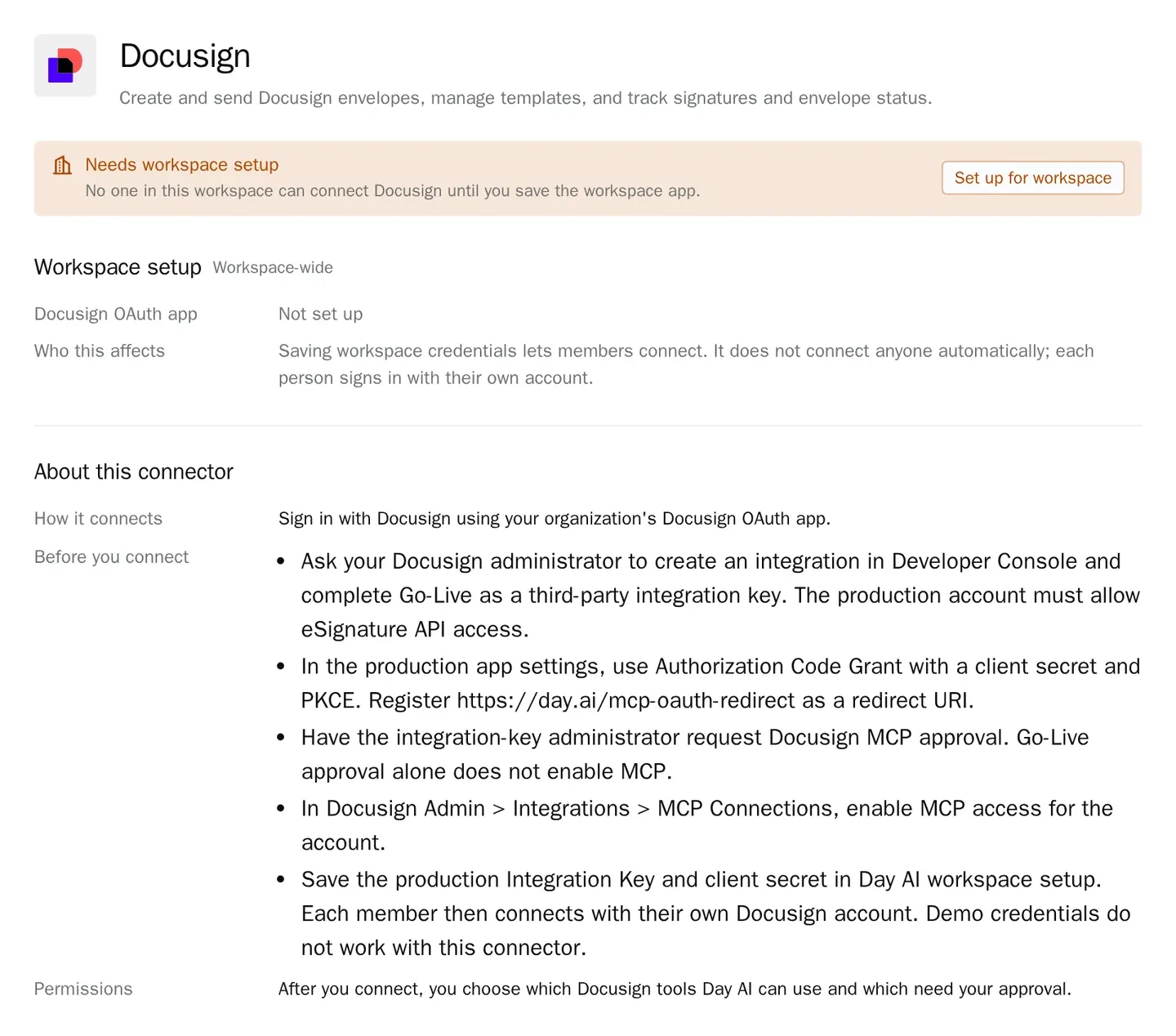
Your Docusign administrator usually does this part, and the Docusign setup dialog in Day AI lists each item. In the Docusign Developer Console, create an integration and complete Go-Live as a third-party integration key, on a production account that allows eSignature API access. In the production app settings, use Authorization Code Grant with a client secret and PKCE, and register https://day.ai/mcp-oauth-redirect as a redirect URI. Then have the integration-key administrator request Docusign MCP approval, and enable MCP access under Docusign Admin > Integrations > MCP Connections.
Step 2: Save the integration in Day AI (workspace Owner)
In Day AI, open Settings > Connectors, find Docusign (it's under Finance & operations in Browse connectors), and choose Set up for workspace. Paste the production Integration Key and its client secret, and save. The setup dialog links to Docusign's guides for creating the app, Go-Live and MCP approval. If you can't see Set up for workspace, ask an Owner; they hold the manage-settings permission by default.
Step 3: Each rep connects their own Docusign account in Day AI
Each rep opens Settings > Connectors, finds Docusign and clicks Connect, then signs in to Docusign. The shared integration is not a shared login: the agent can do only what that rep's own Docusign permissions allow, and disconnecting one rep leaves everyone else connected.
Step 4: Set Docusign's tool permissions in Day AI
Open the Docusign connector's Tool permissions. Reads such as envelope status and template lookups start at Always allow. Sending and other changes start at Needs approval, and that's the right place to leave them: an approval card names the connector and the action, with Approve and Deny. Turn Off any write tool you never want an agent near.
Step 5: Send and track contracts by asking your Day AI agent
Ask in chat. "Send the Acme order form to the signer from Tuesday's call, and copy their legal contact" proposes the envelope for your approval. "Which of my envelopes sent this week are still unsigned?" gives you the chase list. "What templates do we have for renewals?" saves a trip to the template library. A skill can own the Friday chase list: ask your agent to create one that lists unsigned envelopes, and pick Docusign in its Connectors picker. Sends stay in chat, where each one waits for you. Every Day AI integration and connector is listed in one place if contracts touch other tools too.
Where a homemade contract automation breaks
- The trigger fires on the wrong stage. A stage-change rule sends the order form when someone drags a card too early. In Day AI, sending starts at Needs approval, so the rep approves the envelope in chat first.
- The recipients live in an email. A template rule only knows the contact on the record. In Day AI, the agent reads the call and the thread where the buyer named the signer and legal.
- One sending account for the team. A shared Docusign user hides who sent what. In Day AI, each rep signs in with their own Docusign account, so every envelope comes from its rep.
- Chasing signatures by hand. Someone checks the Docusign inbox every morning. In Day AI, you ask which envelopes are unsigned and create a task for each one.