How to connect Gmail and Google Calendar to an AI agent: what GTM AI agents can do with Gmail and Google Calendar in Day AI
Updated
The short answer. To connect Gmail and Google Calendar to an AI agent, connect each person's own Google account and let the agent build its picture of every customer from that person's email and meetings, so GTM AI agents, the working half of AI for GTM, prep calls, recap the day and draft replies from what actually happened. Day AI does this under Settings > Email and Meetings: each person connects their own Google account, chooses what teammates can see, and Day AI turns the inbox and calendar into customer memory, whether you use Day AI in place of your CRM or on top of Salesforce or HubSpot.
Say you're the chief of staff at a consumer-services company, and it's 7:40 on a Wednesday evening. You, the CEO and the executive assistant all work out of the CEO's inbox, and it holds hundreds of people who matter: other CEOs, bankers, investors. The worry is always the same one, that a top-tier introduction slips past in the volume. The evening recap from Day AI lands, in the same format as every other night. Two items need the CEO. One is a speaking invitation that arrived mid-afternoon, between a board thread and a calendar change, and nobody had opened it. You open the thread in Day AI, ask the agent for a short reply that holds the date while the CEO decides, read it, and send it on. The CEO sees both items before dinner. The invitation was caught that night, not found on Friday.
Where the usual answer goes wrong. A plugin that summarizes one thread at a time, or a rule that forwards mail to a logging address, is where most Gmail and AI setups stop. Both treat the inbox as a pile to process, so the agent knows today's thread and nothing about the person who sent it. Day AI starts from the other end: the conversations are the record, and every email and meeting lands on the same people, companies and deals your agents work from. You may already forward important threads into a notes tool. That habit was right; Day AI does it for every thread, under rules each person sets.
Account, sharing, routine: Gmail and Google Calendar with Day AI
Connecting an inbox and a calendar to an agent comes down to three choices, made in this order.
- Account: each person connects their own. A shared mailbox login hides who knows what and gives the agent far more than one person should see. In Day AI, each person connects their own Google account under Settings > Email and Meetings, and their agent works with that person's mail and calendar.
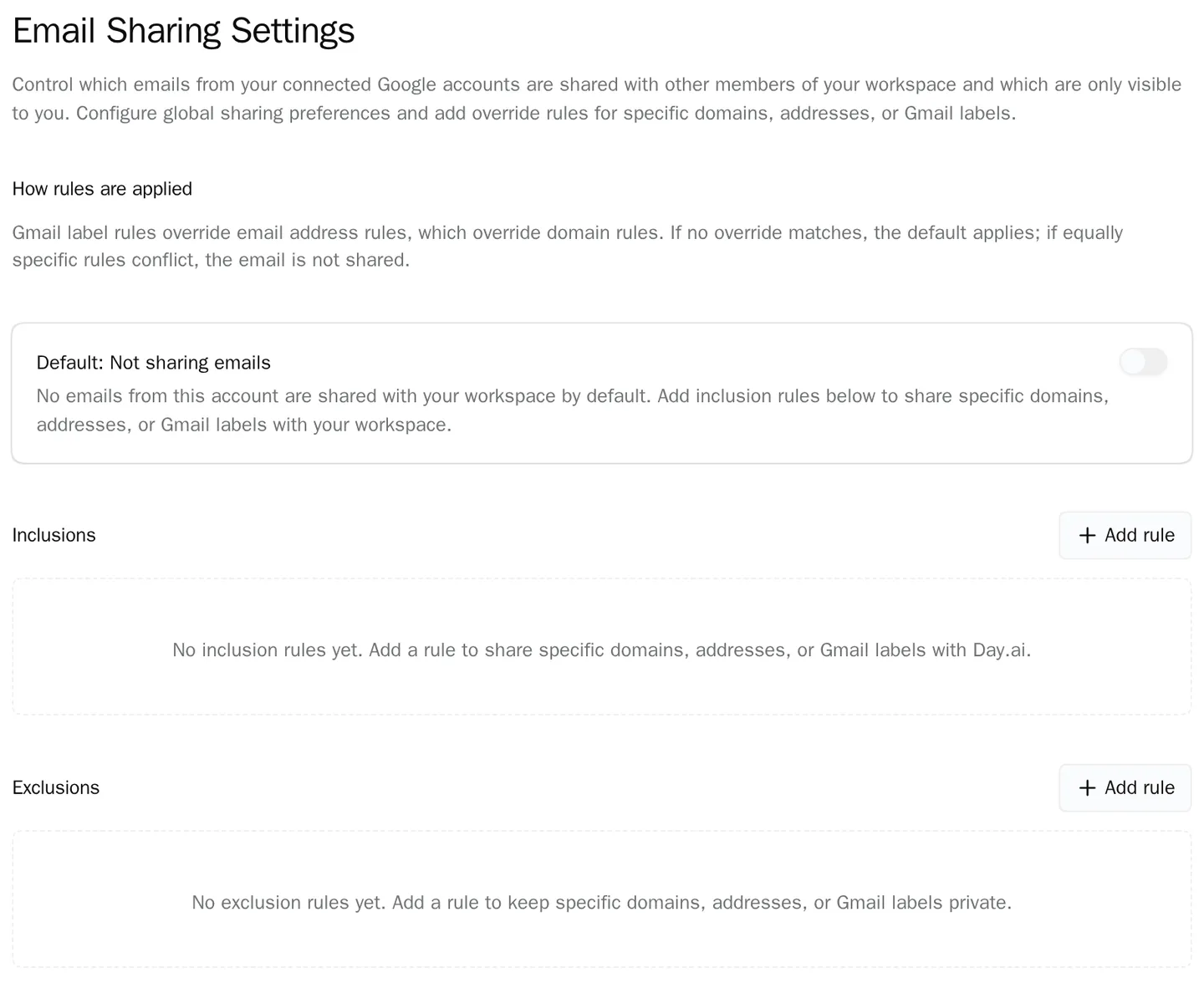
- Sharing: decide what teammates see before anything is shared. Email holds HR, legal and personal threads next to customer ones. In Day AI, email starts Private and meetings start Invite only, and each person shares all email or none by default, with exceptions by domain, address or Gmail label.
- Routine: give the agent a job that repeats. An agent that waits to be asked is a search box. In Day AI, a skill runs on a schedule or when something happens, such as an evening recap of the inbox or a brief before each meeting.
How to connect Gmail and Google Calendar to Day AI
Step 1: Connect your Google account in Day AI
Open Settings > Email and Meetings and connect Google. Google asks you to pick an account, then shows its permissions screen: Day AI asks to read your email, create and send email for you, read your contacts, see and edit your calendar events, and see your basic profile. Approve it, and Day AI shows Configuring your account… while it finishes. A new person's first email and calendar sync takes one to six hours. Nobody sets up a BCC address or a forwarding rule; email and meetings come in on their own from then on.
Step 2: Set your sharing in Day AI before you share
Email and meetings have separate settings. For email, choose share all or share none as your default, then use Add rule to make exceptions for a domain, an email address or a Gmail label. If you share all, Day AI suggests domains you may want to keep private, such as legal or HR contacts, and you accept or dismiss each one. You can also tell your agent "keep everything from these domains private" and paste a list; it adds the exclusions and shows them to you. Meetings have their own Invite only or Workspace settings, covered in the meetings guide. Your own agent can still read your private email when you ask it to, and contacts and companies are always shared so the team's customer record stays complete.
Step 3: Add your other Google accounts to Day AI
Many people have a second inbox: a founder's old address, a regional domain, a personal calendar. Add each one under Settings > Email and Meetings, or ask your agent to "connect my personal calendar" and it sends you the link. Each account gets its own sharing settings and its own recording default, and your agent works across all of them. If you move to a new work address, deactivate the old account instead of deleting it: its email, meetings and contacts stay in Day AI and remain searchable.
Step 4: Ask your Day AI agent about any customer
Once your mail is in, ask in plain words. "What did Priya last say about the renewal, and is anything waiting on me?" reads the thread history with that person. "What's on my calendar tomorrow, and who haven't I met before?" pulls each meeting with the people in it and what you know about them. "Draft a reply to the Lumen thread that confirms the Tuesday call" writes it from the thread and the account's history, for you to review before it goes out.
Step 5: Put a Day AI skill on a schedule or a trigger
For the work that repeats, ask your agent to create a skill. "Every weekday at 6pm, recap my inbox: anything from an investor or a CEO that needs a reply, and anything on tomorrow's calendar I should prep" becomes a scheduled skill that sends you the same format each night. A skill can also run when an email arrives. Each skill has a Private Data Access setting: with it off, the skill reads only what you've shared with the workspace; turn it on when a recap should cover your private email too.
Where a homemade inbox agent breaks
- One shared login for the whole team. It works for the founder and exposes everyone's mail by the third hire. In Day AI, each person connects their own Google account and sets what teammates and their agents see.
- Forwarding rules that someone forgets. A BCC address catches the threads people remember to copy. In Day AI, email and meetings come in without anyone copying anything.
- Summaries with no memory. A thread summarizer knows the thread and nothing about the sender. In Day AI, the agent answers from every email and meeting you've had with the sender, not just the thread in front of you.
- A recap nobody maintains. A script that mails a digest breaks when the inbox or the format changes. In Day AI, the recap is a skill you edit by asking your agent, and it runs on the schedule you set.
To see what else feeds the record, look at every Day AI integration and connector.