How to connect Granola to an AI agent: what GTM AI agents can do with Granola in Day AI
Updated
The short answer. To connect Granola to an AI agent, connect your team's Granola workspace with a Workspace API key and choose which folders the agent may read, so the GTM AI agents behind your AI for GTM can use every shared Granola note alongside your email and calls. Day AI does this as a workspace integration: a Day AI workspace Owner pastes the Granola key under Workspace Settings > Integrations, and Day AI brings your team's Granola notes, transcripts and attendees into the customer record for every rep's agent to work from, whether you use Day AI in place of your CRM or on top of Salesforce or HubSpot.
Imagine it's 8:20 on a Monday and you're about to walk into a renewal call with an account you inherited last month. The previous owner took every meeting in Granola, and their notes sit in a team folder. You've never read them. You open Day AI and ask your agent to prep you for the call. The brief comes back with the three things the customer has raised in every meeting since spring, the integration they were promised for this quarter, and the name of the operations lead who joined the last two calls and wasn't on the original deal. Each point links to the note it came from, and the latest thread with their CFO sits right next to it. You ask the agent to create a task to confirm the integration date before the call ends. You walk in knowing the account's history as well as the person who built it.
Where the usual answer goes wrong. Most Granola advice stops at the note: take great notes, then copy the good parts into the CRM. The note is fine; the copying is where it fails, because it depends on someone doing it after every call. Day AI treats each shared note as part of the record, on the same people, companies and deals as the email around it. If someone on your team pastes Granola summaries into deals today, they've been doing Day AI's job by hand.
Scope, connect, use: Granola with Day AI
Bringing Granola to an agent is mostly one decision, made before you paste a key: which notes the whole team should share.
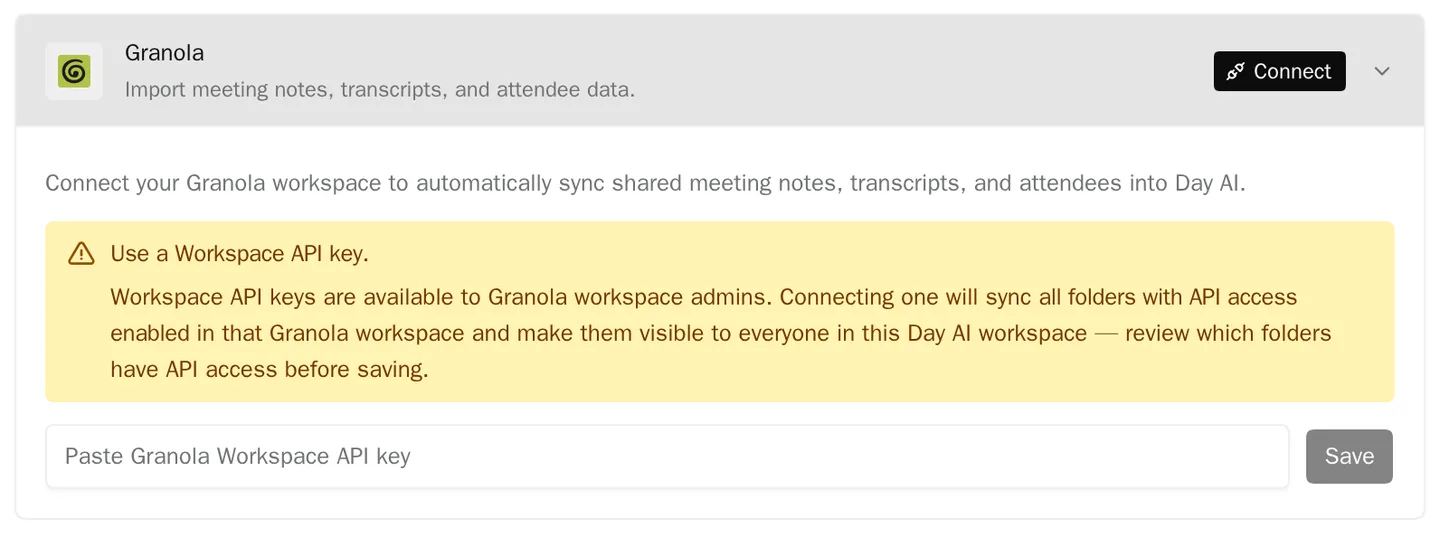
- Scope: choose the Granola folders that are team knowledge. A key sees every folder with API access enabled, and those notes become visible to the whole Day AI workspace. In Day AI, the Granola section says what doesn't come in, notes in folders without API access, so check folder access in Granola before you connect.
- Connect: one Workspace key, pasted once. Asking each rep to export notes means most never will. In Day AI, a workspace Owner pastes one Granola Workspace API key, and Day AI brings in the folders' history, then every new note after it.
- Use: let agents work from the notes. A note only helps if it shows up when it matters. In Day AI, Granola notes feed meeting prep, answers in chat, and skills on a schedule.
How to connect Granola to Day AI
Step 1: Check which Granola folders have API access
In Granola, look at your team folders and decide which ones belong in the shared record: customer calls, deal reviews, onboarding sessions. Turn API access on for those, and keep it off for anything personal or sensitive, such as hiring or one-on-ones. Everything in a folder with API access becomes visible to everyone in your Day AI workspace once you connect, so this is the step that matters. The person generating the key knows which folders it reads, so they make this check.
Step 2: Generate a Granola Workspace API key
A Granola workspace admin opens the Granola desktop app and goes to Settings > Connectors > API keys to create a Workspace API key. Use a Workspace key rather than a personal one, so Day AI reads the team folders. Workspace API keys come with Granola's Business and Enterprise plans.
Step 3: Paste the Granola key into Day AI (workspace Owner)
In Day AI, open Workspace Settings > Integrations, find the Granola section, paste the key and save. While the first import runs, the section shows Importing past notes...; after that it shows Synced through notes updated with a date and time. A new note appears once Granola has finished processing it and Day AI's next check has run. The key is never shown again after you save it, and an Owner can replace it at any time.
Step 4: Ask your Day AI agent about past meetings
Once notes arrive, they show up in Recordings and on the people and companies they involve. Ask in chat: "What has Orbit asked for across our Granola notes this year?", "Who from their side has been in our meetings?", or "Prep me for Thursday's call with Lumen." Your agent answers from the notes, the transcripts and the email around them, and links each answer to its source.
Step 5: Put a Day AI skill on a schedule
Ask your agent to create a skill on a schedule: "Every Friday at 10am, review this week's Granola notes and list new stakeholders and open promises, with the note for each." It sends you the same format every week. To see what else feeds the record, look at every Day AI integration and connector.
Where copying Granola notes by hand breaks
- Notes that never leave Granola. The best note helps one person until someone pastes it somewhere. In Day AI, every note in a shared folder lands on the customer record for the whole team.
- Paste jobs that stop in week three. Copying summaries after every call is the first habit to go. In Day AI, new and updated notes arrive without anyone copying them.
- Notes with no email around them. A Granola note knows the meeting, not the thread before it. In Day AI, the agent reads the note with the thread that came before the meeting.
- New owners start from zero. An inherited account means reading months of notes. In Day AI, the agent preps you from the whole history in one answer.