How to connect Affinity to an AI agent: what GTM AI agents can do with Affinity in Day AI
Updated
The short answer. To connect Affinity to an AI agent, give the agent Affinity's MCP server with one API key whose access you've chosen on purpose, so GTM AI agents, the hands-on part of AI for GTM, can look up your relationship data while they read your meetings and email. In Day AI, a workspace Owner saves that Affinity API key once under Settings > Connectors, each person then clicks Connect, and everyone's agent looks up Affinity people, organizations, lists and notes with that key's Affinity access, whether you use Day AI in place of your CRM or on top of Salesforce or HubSpot.
Picture yourself running business development at a climate-software company, and it's 5:15 on a Tuesday. Tomorrow you're at an industry dinner, and the guest list landed in your inbox an hour ago with forty names on it. You forward nothing and open no spreadsheet. You ask your Day AI agent which guests matter to you. It reads the guest list from the email, looks each organization up in Affinity, and checks them against your target list there and the notes your team has left. It comes back with six names: two companies already on the Affinity list, one with a note from a colleague who met their COO in the spring, and three people you've emailed with in the last year but never met. For each one it adds the last thing that was said between you, with the email or meeting it came from. You read it on the train home. Tomorrow you know which six handshakes to look for.
Where the usual answer goes wrong. The common advice is to export an Affinity list into a spreadsheet and hand it to an AI chatbot. The export is stale the moment it's saved, and the chatbot can't see the meetings and email that make a name on a list worth calling. Day AI starts from the conversations your team already has and reads Affinity live next to them, so the list and the relationship history arrive together. If you already export lists before every event, that was a reasonable workaround; the steps below make the export unnecessary.
The key, scope, ask model for Affinity, with Day AI
Affinity connects through one shared key, so the order of decisions matters more than with a per-person login.
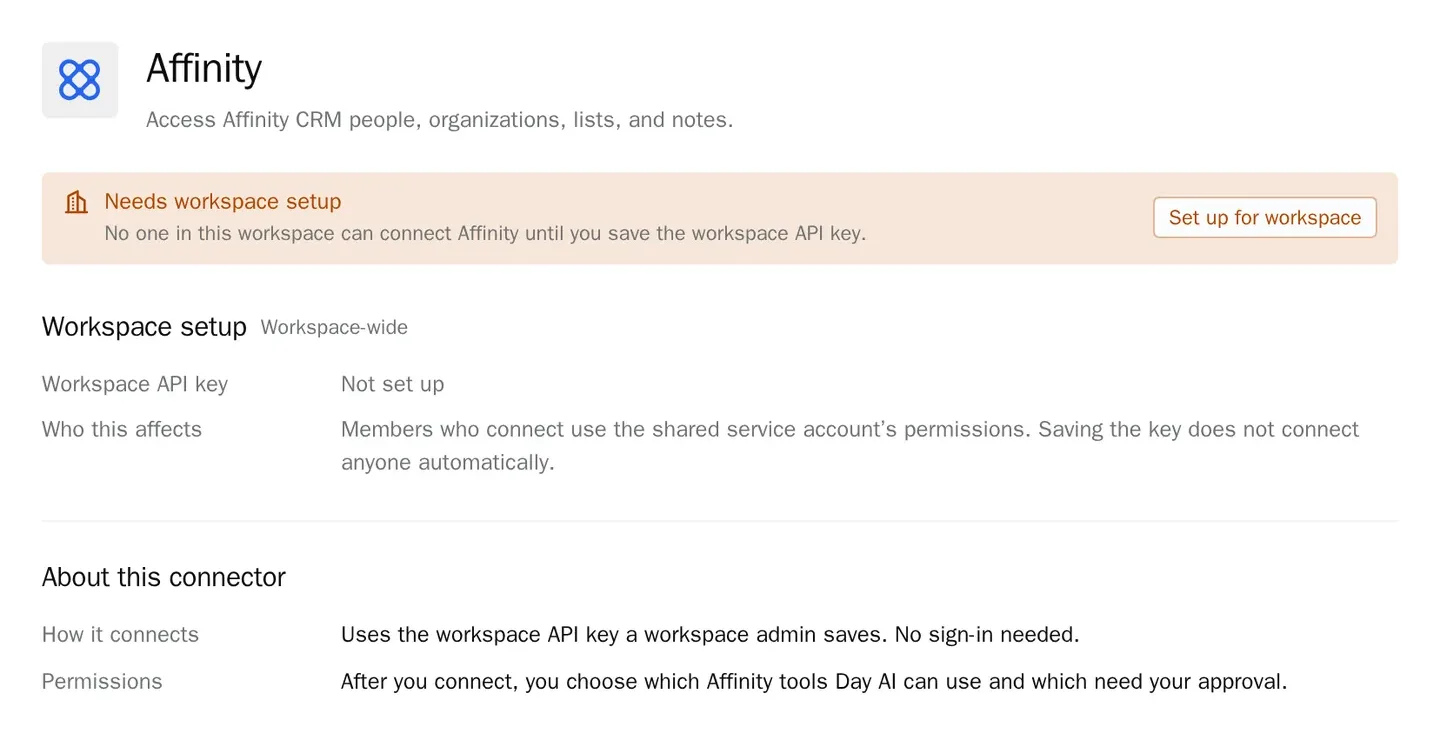
- Key: one Affinity API key for the workspace. Every person who connects will use it, so it's an Owner decision, made once. In Day AI, a workspace Owner pastes the Affinity API key under the connector's Set up for workspace, and members can connect from then on.
- Scope: the key decides what everyone sees. A shared key means a shared view of Affinity. In Day AI, everyone connected uses that key's Affinity access and data scope, so choose a key whose access fits the whole team before you save it.
- Ask: questions that need both Affinity and your conversations. The value is in the overlap between a list and a relationship. In Day AI, each person asks their agent in chat, and it looks up Affinity people, organizations, lists and notes next to their own meetings and email.
How to connect Affinity to Day AI
Step 1: Choose the Affinity key carefully before you save it in Day AI
Generate an Affinity API key from an Affinity account whose access matches what the whole team's agents should see. Everyone who connects through Day AI will read Affinity with that key's access, so a key belonging to someone with private lists would share those lists with every connected agent.
Step 2: Save the key in Day AI (workspace Owner)
In Day AI, open Settings > Connectors, find Affinity and choose Set up for workspace. Paste the API key and save. Saving setup doesn't connect anyone automatically. Later, Replace in the connector's Workspace setup section swaps in a new key, and Clear removes the setup along with the connections that used it.
Step 3: Each person connects Affinity in Day AI
Each person opens Settings > Connectors, finds Affinity and clicks Connect. There's no Affinity sign-in for them, because the key is already saved. Each connection is still personal: it extends only that person's agent, each person controls their own tool permissions, and disconnecting yours leaves your teammates connected.
Step 4: Set Affinity's tool permissions in Day AI
On the Affinity connector, Tool permissions lists the lookups for people, organizations, lists and notes under Read-only, starting at Always allow, so your agent can check Affinity mid-conversation. Set any tool to Off to keep the agent away from it, and use the + menu in the chat composer to turn Affinity off for one chat.
Step 5: Ask your Day AI agent about Affinity
Try "Who on our Affinity target list have I met in the last quarter?", "What notes do we have in Affinity on Harbor Labs, and what did they say in last week's meeting?" or "Which organizations on this Affinity list has anyone on the team emailed this month?" For a weekly version, ask your agent to create a skill and pick Affinity in its Connectors picker; if the skill's agent owner disconnects Affinity, the skill loses access to it too. Affinity sits alongside every Day AI integration and connector, so the same skill can read your calendar too.
Where a homemade Affinity agent breaks
- Spreadsheet exports. Each export is a snapshot, and by the second event nobody knows which copy is current. In Day AI, the agent looks Affinity up when the question comes in, so a name added to the list an hour ago is already there.
- A key nobody chose. A script built on whoever's key was handy quietly shares that person's private lists. In Day AI, an Owner saves the key on purpose under Set up for workspace, and Replace swaps it when the team's needs change.
- Lists without the history. A list says who matters, not what was last said to them. In Day AI, the agent reads the meetings and email behind each name before it answers.
- A bot only one person can run. A homemade tool lives on one laptop. In Day AI, every teammate clicks Connect and gets the same Affinity access in their own agent.