How to connect Attio to an AI agent: what GTM AI agents can do with Attio in Day AI
Updated
The short answer. To connect Attio to an AI agent, give the agent Attio's MCP server with each person's own Attio login, so GTM AI agents, the part of AI for GTM that does the legwork, can look up Attio records while they read your calls and email. In Day AI, each person opens Settings > Connectors, clicks Connect on Attio and signs in, with no workspace setup first, and their agent can then look up Attio records, lists, notes, tasks, meetings, emails and reports whenever a question needs them.
Imagine you're an account executive, and it's 8:40 on a Monday. Your 9:00 is a second call with a logistics company, and the first one was ten days ago. You open Day AI and ask your agent to get you ready. It reads last week's call and the email thread since, then looks the company up in Attio: the record, the list it sits on, a note a teammate left after a conference and the tasks still open against it. The note says their procurement team wants a security review before any pilot, which nobody raised on the first call, and the task to send the security pack is still open in Attio. Your agent puts all of it in one short brief, with each point linked to where it came from. You walk into the 9:00 and ask about the security review in the first five minutes, instead of hearing about it in week six.
Where the usual answer goes wrong. Most advice on pairing Attio with AI starts with a summary someone pastes into a note after the call. That note holds what one person remembered, and the agent reading it never sees the email that changed the deal on Thursday. Day AI starts from the conversations themselves, every meeting, email and Slack thread, and reads Attio next to them so the two can be checked against each other. You may already have a habit of pasting call notes into Attio by hand. That was a good instinct; the steps below let the agent do the reading for you.
The ask, look up, cross-check model for Attio, with Day AI
An agent is useful with Attio when it does three things in order, without anyone exporting a list first.
- Ask: start from the question, not the record. "What's open with this company?" beats opening four tabs. In Day AI, you ask your agent in chat, in plain words, and it decides which sources the answer needs.
- Look up: read Attio as the person asking. An agent should see what you can see in Attio and nothing more. In Day AI, the agent uses Attio's MCP server with your own Attio login to look up records, lists, notes, tasks, meetings, emails and reports.
- Cross-check: put Attio next to the conversations. A record and the last call often disagree, and that gap is the useful part. In Day AI, the agent reads the record alongside your calls, email and meetings and points out where they don't match, with each fact linked to its source.
How to connect Attio to Day AI
Step 1: Connect your Attio account in Day AI
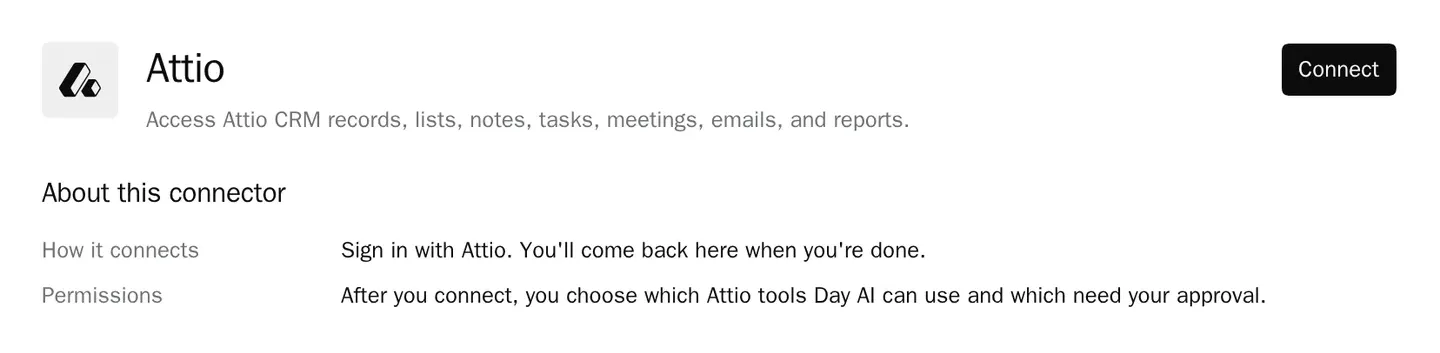
Open Settings > Connectors, search for Attio, click Connect and sign in to Attio. There's nothing for a workspace Owner to save first, so anyone can do this today. Day AI loads the tools Attio's MCP server offers, and your agent can use them in the same chat right away.
Step 2: Check the Attio tool permissions in Day AI
Open the Attio connector to see Tool permissions. The lookup tools sit under Read-only and start at Always allow, so your agent can check Attio mid-conversation without stopping to ask. Turn Off any tool you'd rather the agent never use; the change applies from the following message in every chat. When a conversation shouldn't touch Attio at all, switch the connector off for that chat from the + menu in the composer.
Step 3: Ask your Day AI agent about Attio
Questions work best when they mix Attio with what happened. "Which companies on our Q1 target list in Attio had a meeting with us this month?" joins an Attio list to your calendar. "What do the notes in Attio say about Northwind, and does yesterday's call change any of it?" sets a teammate's notes next to the call. "Pull the Attio report on open opportunities and flag any where nobody has emailed in two weeks" uses an Attio report and your email together.
Step 4: Put Attio in a Day AI skill for the reads that repeat
For a question you ask every week, ask your agent to create a skill, such as a Monday brief on every account in an Attio list, and select Attio in the skill's Connectors picker. Turning an Attio tool Off in chat doesn't remove it from a skill that has Attio selected, so decide in the skill itself which sources it reads. Attio isn't the only source a skill can read: every Day AI integration and connector is listed in one place.
Where a homemade Attio agent breaks
- Notes pasted by hand. The pasted summary is only as complete as the person's memory that afternoon. In Day AI, the agent reads the call and the email themselves, then checks what Attio says against them.
- A nightly export. A script that copies Attio into a spreadsheet or an index is a day behind by breakfast. In Day AI, the agent asks Attio at the moment you ask it, so this morning's note is already there.
- One token for everyone. A shared API token reads with one account's access for every person who uses the bot. In Day AI, each person connects their own Attio login, so the agent sees what that person can see.
- A bot that knows one object. A script built to read Attio companies can't answer a question about a list or a report. In Day AI, the agent chooses among Attio's tools for records, lists, notes, tasks and reports, depending on what you asked.