How to connect Dropbox to an AI agent: what GTM AI agents can do with Dropbox in Day AI
Updated
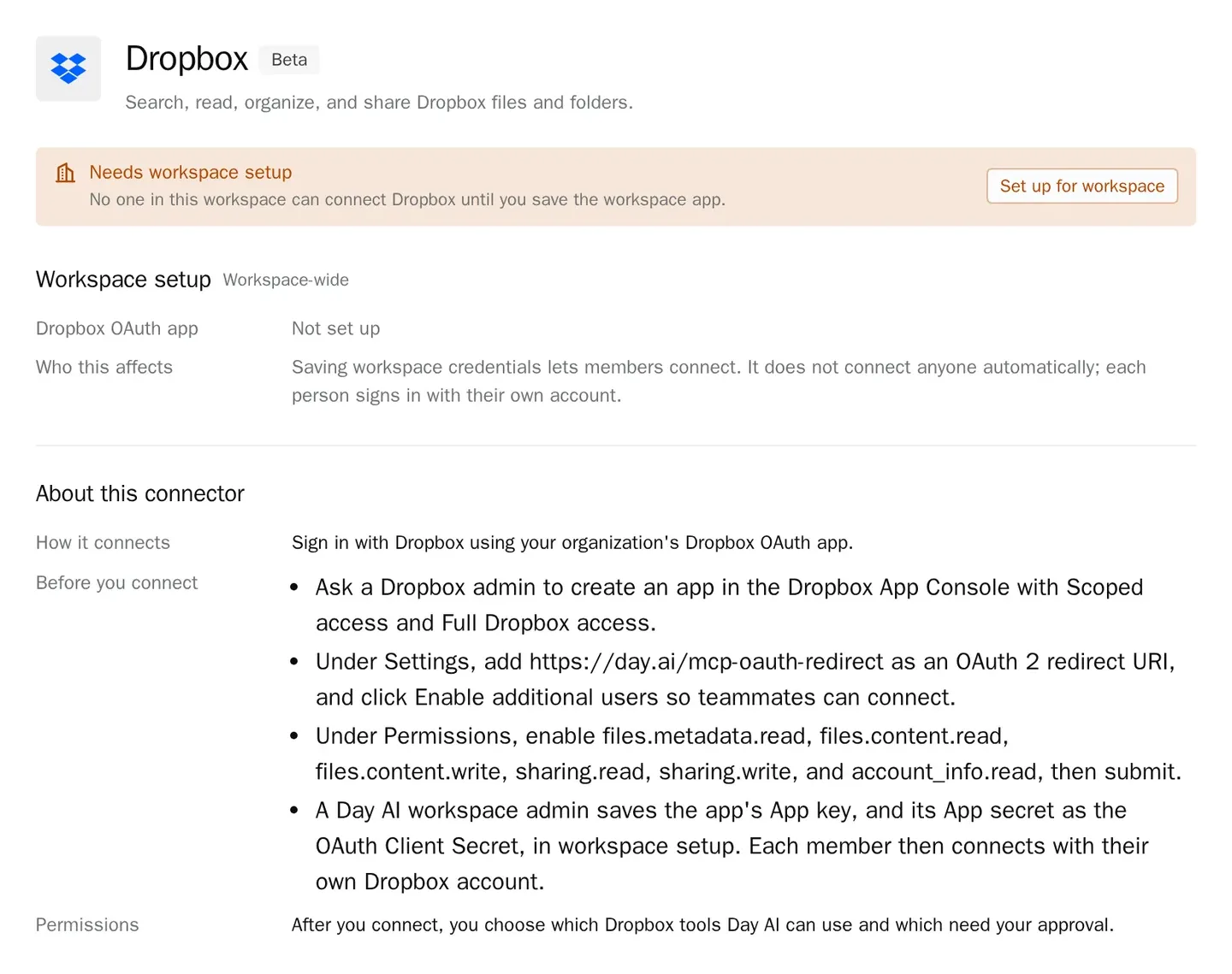
The short answer. To connect Dropbox to an AI agent, register your company's own Dropbox app and sign each person in with their own Dropbox account, so GTM AI agents, the agents that do the work of AI for GTM, can find, read, organize and share the files behind every deal. Day AI does this under Settings > Connectors, whether you use Day AI in place of your CRM or on top of Salesforce or HubSpot: a Dropbox admin creates the app, a workspace Owner saves its App key and App secret under Set up for workspace, and each person clicks Connect and signs in.
Let's say you're an account executive, and it's 3:30 on a Tuesday. The procurement call just ended, and the buyer asked for two things before Friday: your security overview and the order form template legal approved. You open Day AI and ask your agent to put together the follow-up. It reads the call, searches your Dropbox, and finds both files in the sales folder. It opens each one to check it's the document the buyer described, then proposes a shared link for each. Because sharing changes need approval, both links wait in the chat as approval cards naming Dropbox and the action. You approve them, and the agent drafts the follow-up email with the two links and a line recapping what the buyer asked for. You change one word and send it, then ask the agent to create a task for Friday to check whether the buyer has returned the order form. The buyer has both documents before they've written up their own notes from the call.
Where the usual answer goes wrong. Most advice on AI and Dropbox is about search: find the file faster. For a rep, finding the file is half the job. The other half is knowing which file this customer was promised, checking it's the right version, and sharing it without opening a whole folder by accident. Day AI starts from the conversation, finds the file in Dropbox live, and asks before anything is shared, moved or deleted. You may already have a well-kept sales folder. Good: the agent works from it.
The find, check, share pattern for Dropbox, with Day AI
Sending a customer the right document comes down to three checks, in this order.
- Find: search with your own access. An agent should only reach files the person asking can open. In Day AI, the agent searches Dropbox with your own Dropbox account, so it finds what you can see and nothing else.
- Check: match the file to the request. The buyer asked for a specific document on a specific call. In Day AI, the agent reads the file and the conversation, so it can tell you the file matches what was asked for before you send it.
- Share: a person approves every change. A shared link is a decision about who sees a document. In Day AI, uploads, moves, deletes and sharing changes need approval by default, and each one waits as an approval card in the chat.
How to connect Dropbox to Day AI
The Dropbox connector is in beta in Day AI. Your company uses its own Dropbox app for it: a Dropbox admin creates the app, and a Day AI workspace Owner saves it once.
Step 1: Create your company's Dropbox app for Day AI (Dropbox admin)
In the Dropbox App Console, create an app with Scoped access and Full Dropbox access. Under Settings, add https://day.ai/mcp-oauth-redirect as an OAuth 2 redirect URI, and click Enable additional users so teammates, not only the app's creator, can connect. Under Permissions, enable files.metadata.read, files.content.read, files.content.write, sharing.read, sharing.write and account_info.read, then submit. New Dropbox apps start in development status; once 50 people have connected, the app owner applies for production status in the App Console.
Step 2: Save the Dropbox app in Day AI (workspace Owner)
In Day AI, open Settings > Connectors and find Dropbox, listed under Projects & docs in Browse connectors. Choose Set up for workspace, enter the app's App key, and paste its App secret in the OAuth Client Secret field, then save. Until this is done, Dropbox shows Needs workspace setup to people who can configure it and Admin setup required to everyone else. Setup is open to anyone with permission to manage workspace settings, which is the Owner role by default.
Step 3: Each person connects their own Dropbox in Day AI
Each person opens Settings > Connectors, finds Dropbox and clicks Connect, then signs in with their own Dropbox account. The shared app is not a shared login: every agent works with that person's Dropbox access, and disconnecting one person leaves everyone else connected. Dropbox appears with every Day AI integration and connector your team can add.
Step 4: Set Dropbox's tool permissions in Day AI
Open the connector's Tool permissions, grouped under Read-only and Write & delete, each with Set all. Search and read tools don't need approval. Uploads, moves, deletes and sharing changes start at Needs approval; keep them there, and turn Off anything your team never wants an agent to do, such as deletes. The + menu in the chat composer turns Dropbox on or off for one chat.
Step 5: Ask your Day AI agent to work with Dropbox
Ask in chat. "Find the latest security overview in Dropbox and share it with the buyer from today's call" finds the file and proposes the link. "Move the signed Halden documents into the customer's folder" proposes the move. "What's in the onboarding folder that we haven't sent Halden yet?" compares the folder with your email. For a weekly read, such as a list of new files in your customers' folders, ask the agent to create a skill and pick Dropbox in its Connectors picker; skill runs don't stop for approval cards, so keep sharing and moves in chat.
Where a homemade Dropbox agent breaks
- One shared Dropbox login. A bot account sees every folder, for everyone who asks it. In Day AI, each person signs in with their own Dropbox account.
- Links shared without a look. A script that shares files on request can open the wrong folder to the wrong person. In Day AI, every sharing change waits for your approval.
- The wrong version goes out. Search returns three files named "Security overview final". In Day AI, the agent reads each one against what the buyer asked for.
- Files nobody can find. The document exists, in a folder only its author remembers. In Day AI, the agent searches Dropbox for you in the middle of the follow-up.