How to connect HubSpot to an AI agent: what GTM AI agents can do with HubSpot in Day AI
Updated
The short answer. To connect HubSpot to an AI agent, give the agent HubSpot's MCP server with each rep's own HubSpot login, so GTM AI agents, the part of AI for GTM that does the work, can read and update your CRM from the same place they read your calls and email. Day AI does this under Settings > Connectors: a workspace Owner saves your HubSpot app once, each rep signs in, and their agent uses HubSpot's MCP server to read and write HubSpot data, whether you use Day AI in place of your CRM or on top of HubSpot.
Say you run revenue at an audit-software company, and it's 4:50 on a Thursday. A discovery call just ended, and the champion finally named the economic buyer. You have a forecast call at 5:30 and the HubSpot deal still says nothing about any of it. You open Day AI and ask your agent to score the deal. It reads the whole deal, every call and email, not only today's, and proposes three MEDDPICC updates plus two new attendees to attach to the deal. Each HubSpot change shows up as an approval card in the chat, and the agent tells you which call each one came from. You deny one score you want to check with the champion, approve the rest, and the deal in HubSpot now carries the new buyer, the updated scores and the right contacts. Nobody opened a HubSpot field.
Where the usual answer goes wrong. Most HubSpot AI guides start with a field to fill in and a prompt that reads one call at a time. That agent sees today's transcript and nothing else, so it scores the deal on a sliver and sometimes picks the wrong one. Day AI starts from the conversations, every email, meeting and Slack thread on the deal, and treats HubSpot as the system the agent updates, with a person approving what matters. You may already have a HubSpot workflow or a script that writes call notes to deals. That was the right start; the steps below give it the whole deal to read.
The connect, scope, approve model for HubSpot, with Day AI
Connecting HubSpot to an agent is three decisions: whose login the agent uses, what it may do on its own, and where its work shows up. Get them in this order.
- Connect: one company app, one login per rep. A shared integration user makes every change look like the same person and sees more than any rep should. In Day AI, a workspace Owner saves your company's HubSpot OAuth app once, and each rep connects with their own HubSpot login, so the agent sees what that rep can see in HubSpot.
- Scope: reads run, writes ask. Looking up a deal is safe to automate; changing one is a decision. In Day AI, every HubSpot tool is set to Always allow, Needs approval or Off, with read tools at Always allow and write tools at Needs approval to start.
- Approve: the change lands where the rep already is. An agent's update is only useful if a rep sees it before it ships. In Day AI, a HubSpot write waits as an approval card in the chat, naming the connector and the action, until the rep approves or denies it.
How to connect HubSpot to Day AI
Step 1: Save your HubSpot app in Day AI (workspace Owner)
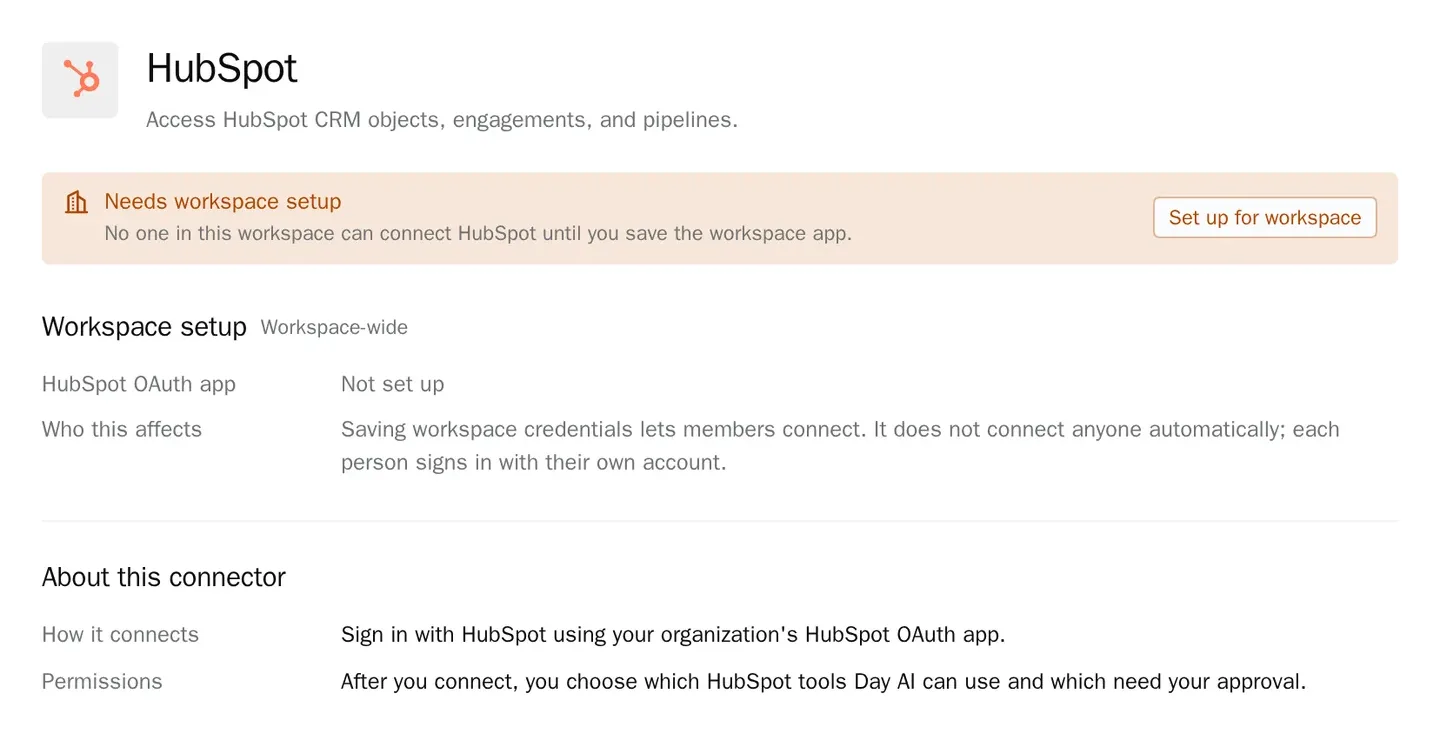
In HubSpot, create an app for your company's HubSpot account, and add https://day.ai/mcp-oauth-redirect as its redirect URL. Then, in Day AI, open Settings > Connectors, find HubSpot, and choose Set up for workspace. Paste the app's client ID and its client secret (HubSpot requires both), and save. Until this is done, HubSpot shows Needs workspace setup to people who can configure it and Admin setup required to everyone else. Setup appears for anyone with permission to manage workspace settings, which is the Owner role by default. For the rest of your stack, see every Day AI integration and connector.
Step 2: Each rep connects their own HubSpot account in Day AI
Each rep opens Settings > Connectors, finds HubSpot and clicks Connect, then signs in to HubSpot. Day AI loads the tools HubSpot's MCP server offers for contacts, companies, deals, engagements and pipelines. The shared app is not a shared login: every rep's agent works with that rep's own HubSpot access, and disconnecting one rep never touches anyone else's connection. If a rep would rather ask than click, they can tell their agent "connect HubSpot" in chat and it sends them the sign-in link.
Step 3: Set HubSpot's tool permissions in Day AI
Open the HubSpot connector to see its Tool permissions, grouped under Read-only and Write & delete, each with a Set all menu. Leave the read tools at Always allow so your agent can look up a deal mid-conversation. Keep write tools at Needs approval while the team learns what the agent proposes, and turn Off anything you never want an agent to touch, such as deletes. Changes apply to the next message in every conversation, and the + menu in the chat composer turns a connector on or off for one chat.
Step 4: Ask your Day AI agent to work in HubSpot
Now ask in chat. "What stage is the Northwind deal in HubSpot, and does it match what they said on Tuesday's call?" pulls the HubSpot deal next to the call. "Create a task on the deal for the security review we promised" proposes the task as an approval card. "Attach the two new attendees from today's call to the deal" finds them in the meeting and proposes the associations. You approve in the chat, and HubSpot changes.
Step 5: Add HubSpot to a skill in Day AI for the recurring reads
For work that repeats, ask your agent to create a skill, such as a Monday pipeline review, and pick HubSpot in the skill's Connectors picker. A skill can use only the connectors picked there, and it runs with the connection of the agent's owner. Skill runs don't stop for approval cards, so give skills the reading and reporting, and keep HubSpot changes in chat, where a rep approves each one.
Where a homemade HubSpot agent breaks
- One integration user for everyone. A shared private-app token works for the first rep and makes every change anonymous by the fifth. In Day AI, each rep signs in with their own HubSpot login, so each HubSpot change is made under the login of the rep who approved it.
- The agent reads one call. A workflow that fires on a new transcript scores the deal on that call alone. In Day AI, the agent reads every email, meeting and Slack thread on the deal before it proposes a HubSpot change.
- Writes happen in the dark. A script that patches deal properties leaves the rep finding out later. In Day AI, a HubSpot write tool at Needs approval stops and asks in the chat first.
- Every new question needs new code. A custom integration answers the questions it was built for. In Day AI, a rep asks a new question in plain words and the agent uses the HubSpot tools it already has.