How to connect Salesforce to an AI agent: what GTM AI agents can do with Salesforce in Day AI
Updated
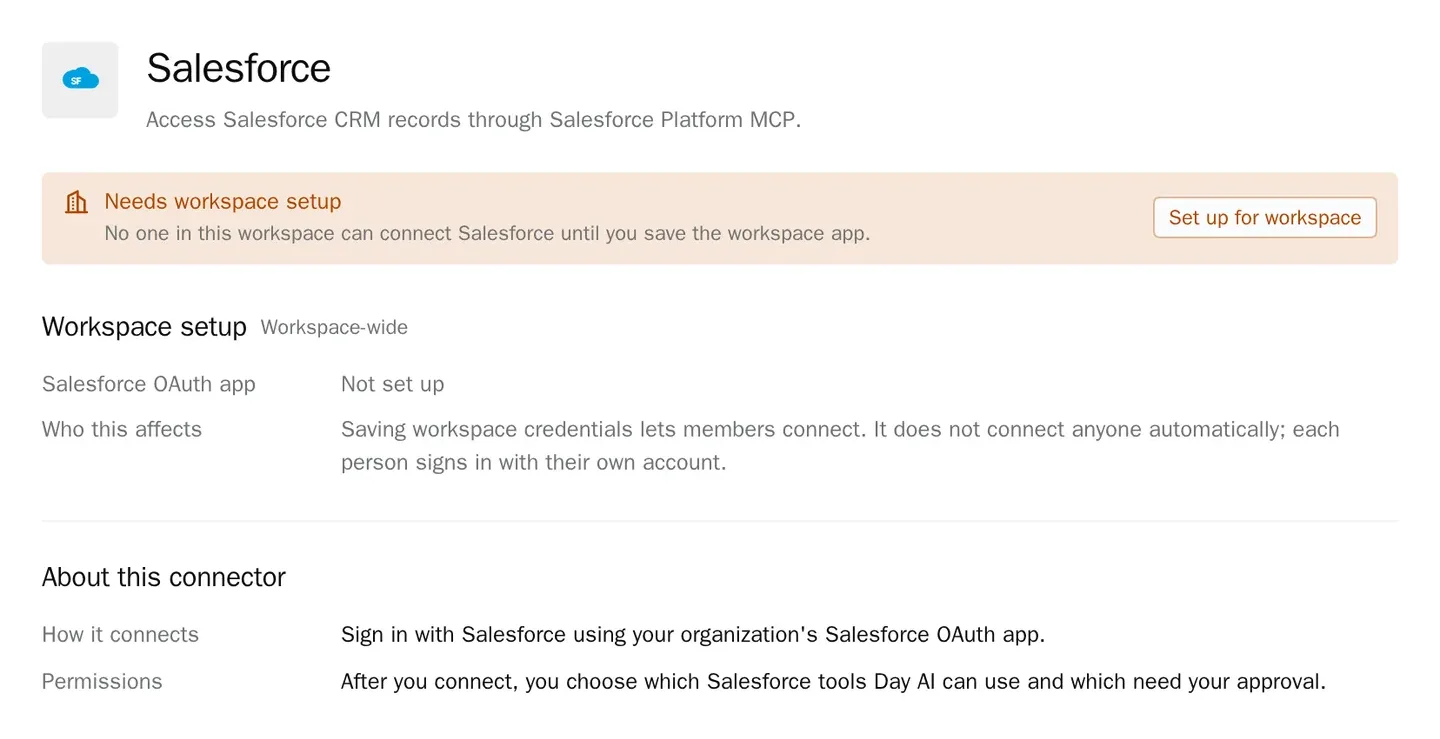
The short answer. To connect Salesforce to an AI agent, run Salesforce's MCP server through your company's own Salesforce app and have each rep sign in as themselves, so GTM AI agents, the part of AI for GTM that keeps the record current, can read and update opportunities from the same place they read your calls and email. In Day AI, a workspace Owner saves that app once under Settings > Connectors, each rep clicks Connect, and their agent uses Salesforce's MCP server to read and write Salesforce data within that rep's own Salesforce access.
Say you're a CSM at a developer-platform company, and it's 3:10 on a Wednesday. The renewal call with one of your biggest accounts just ended. Their new VP of engineering joined for the first time, and she raised a budget question nobody had mentioned before. You have back-to-back calls until five. Before the next one starts, you ask your Day AI agent to bring the renewal opportunity in Salesforce up to date. It reads today's call along with the account's earlier email and meetings, then proposes two MEDDPICC field changes and the two new attendees to attach to the opportunity. The changes wait for you as approval requests, and one reaches you in Slack between calls, naming Salesforce and what it wants to change. You approve it there in a few seconds. When your five o'clock ends, the opportunity in Salesforce shows the new economic buyer, the open budget question and both new contacts. Monday's forecast starts from a renewal that already knows about the budget question.
Where the usual answer goes wrong. Most Salesforce AI advice starts with an integration user and a flow that writes a call summary into a field. The integration user can see far more than any rep, every change looks like it came from nobody, and the flow only ever reads one call. Day AI starts from the conversations on the account and treats Salesforce as the record the agent updates, signed in as the rep it works for, with that rep approving what changes. If you already have a flow that drops call notes onto opportunities, that was a sensible start. The steps below give it the whole account to read and a person to answer to.
The app, login, sign-off model for Salesforce, with Day AI
A Salesforce connection for an agent comes down to three things, set up in this order: whose app Salesforce trusts, whose login the agent uses, and who signs off on a change.
- App: your org's own app, saved once. Salesforce trusts an app your own admins created and can revoke. In Day AI, a workspace Owner saves your Salesforce app's client ID, plus its secret if the app has one, under Set up for workspace, and members can connect from then on.
- Login: each rep is themselves in Salesforce. Profiles, permission sets and sharing rules already say what each rep may see and edit. In Day AI, each rep signs in with their own Salesforce login, so their agent works inside exactly those limits and nobody shares a password.
- Sign-off: a change waits for a person. An agent that edits opportunities on its own is a forecast risk. In Day AI, Salesforce write tools start at Needs approval, and each change waits as an approval card that names Salesforce and the action until the rep approves or denies it.
How to connect Salesforce to Day AI
Step 1: Save your Salesforce app in Day AI (workspace Owner)
A Salesforce admin turns on Salesforce's MCP server in Salesforce Setup, creates an app in your org for it, following Salesforce's own setup guide, and adds the Callback URL shown in Day AI's setup dialog as the app's callback URL. Then, in Day AI, open Settings > Connectors, find Salesforce and choose Set up for workspace. Paste the app's client ID, add the client secret only if your app uses one (for Salesforce it's optional), and save. Members who try to connect before then see Admin setup required; anyone with the workspace-settings permission also gets a Needs setup filter in Browse connectors. Setting it up takes the permission to manage workspace settings, which the Owner role has by default.
Step 2: Each rep connects their own Salesforce login in Day AI
Each rep opens Settings > Connectors, finds Salesforce, clicks Connect and signs in to Salesforce. Day AI then loads the record tools Salesforce's MCP server offers. The app is shared; the login is not. Every rep's agent works with that rep's own Salesforce access, and one rep disconnecting leaves everyone else connected. If Salesforce rejects the sign-in, Connectors shows a message starting Authorization failed: with Salesforce's own reason, which you can pass to your Salesforce admin.
Step 3: Set Salesforce's tool permissions in Day AI
Open the Salesforce connector and find Tool permissions. Tools sit under Read-only and Write & delete, and each group has a Set all menu, so you can set a whole group in one move. Reads can stay at Always allow so the agent can check an opportunity mid-conversation. Keep writes at Needs approval, and set anything you never want an agent to do, such as deleting records, to Off. To leave Salesforce out of a single chat, use the + menu in the composer.
Step 4: Send access problems to your Salesforce admin, not to Day AI
If Salesforce refuses an operation for a connected rep, the connector shows Access issue with "Salesforce denied access to an operation. Other operations may still work." The connection hasn't expired, and other tools keep working. Ask a Salesforce admin to review that user's API, object, field and record access. Reconnecting won't change it, because Day AI's tool permissions decide what the agent may try, and Salesforce decides what that login may do.
Step 5: Ask your Day AI agent to work in Salesforce
Now ask in plain words. "Does the renewal opportunity for Acme match what their CFO said in yesterday's email?" puts the Salesforce record next to the email. "Attach today's two new attendees to the opportunity" finds them in the meeting and proposes the change. "Update the champion field from this morning's call" proposes the change on an approval card that names Salesforce and the action. For work that repeats, such as a Monday renewal forecast, ask your agent to build a skill and pick Salesforce in its Connectors picker. The skill reads Salesforce through its agent owner's connection, so build it on the agent of the person whose Salesforce access the forecast should reflect. Skill runs don't stop for approval cards, so give the skill the reading and the report and keep record changes in chat. To see what else your agent can reach, browse every Day AI integration and connector.
Where a homemade Salesforce agent breaks
- One integration user for the whole team. It works for a pilot, then sees every record and signs every change with the same name. In Day AI, each rep's agent signs in as that rep, so the change is made under that rep's own Salesforce login, not a shared one.
- Permissions copied into a script. Someone hard-codes which objects the bot may touch, and the copy drifts from the org. In Day AI, the agent works inside each rep's Salesforce access, so a profile change in Salesforce applies to the agent too.
- Last night's export. A copy of opportunities in a spreadsheet or a vector store is out of date by lunch. In Day AI, the agent reads Salesforce live, so it gets the current value.
- Edits nobody saw. A flow that patches fields leaves the rep to discover the change at forecast time. In Day AI, a Salesforce write at Needs approval asks the rep first, in the chat or in Slack.