How to connect Livestorm to an AI agent: what GTM AI agents can do with Livestorm in Day AI
Updated
The short answer. To connect Livestorm to an AI agent, connect Livestorm's MCP server under your own Livestorm login, so GTM AI agents, the working half of AI for GTM, can see who registered, who showed up and how engaged they were, right next to each person's deals and conversations. Day AI does this under Settings > Connectors: each person clicks Connect and signs in to Livestorm, and their agent uses Livestorm's MCP server to find and manage webinars, sessions and registrants.
Say you run demand generation at a data-security company, Thursday's product webinar is over, and on Friday morning the only thing that has gone out is the replay link. You open Day AI and ask your agent who attended from accounts with an open deal. It reads the session in Livestorm, checks each attendee against the deals and meetings already in Day AI, and comes back with eleven names, four of them on open deals and ranked by how engaged they were, plus one champion who registered but never joined. For each of the four, it drafts a short follow-up that picks up from the last conversation on the deal. You read them, change one line, and send each draft to the rep who owns the deal, with a note to follow up before lunch. By the time the reps finish their first call of the day, the webinar has turned into four warm threads on live deals.
Where the usual answer goes wrong. Most webinar advice ends at the export: download the attendee CSV, upload it somewhere, and add everyone to a nurture. That treats a champion on a live deal the same as a student who wandered in. Day AI starts from what you already know about each person, every email and meeting with their company, and reads Livestorm for what happened at the event, so the follow-up fits the deal. Sending every attendee to marketing automation still has its place for the people with no deal yet. For the ones on live deals, the reps should hear first.
The before, during, after loop for Livestorm, with Day AI
A webinar earns pipeline in three moments. Treat each one as a question your agent answers from Livestorm and from your customer record.
- Before: who's coming. A registrant list is a prep list for the reps who own those accounts. In Day AI, ask your agent which registrants belong to companies with open deals, and it reads the Livestorm registrants next to each company's history.
- During: who showed up and how they engaged. Attendance and engagement separate a curious registrant from a buyer doing research. In Day AI, your agent reviews attendance and engagement for the session in Livestorm and tells you who joined, how engaged they were, and who missed it.
- After: what each rep sends. Follow-up works when it mentions the deal, not the event. In Day AI, the agent drafts follow-up from each deal's history, and you create a task for yourself to check in with each owning rep, so nothing waits on a spreadsheet.
How to connect Livestorm to Day AI
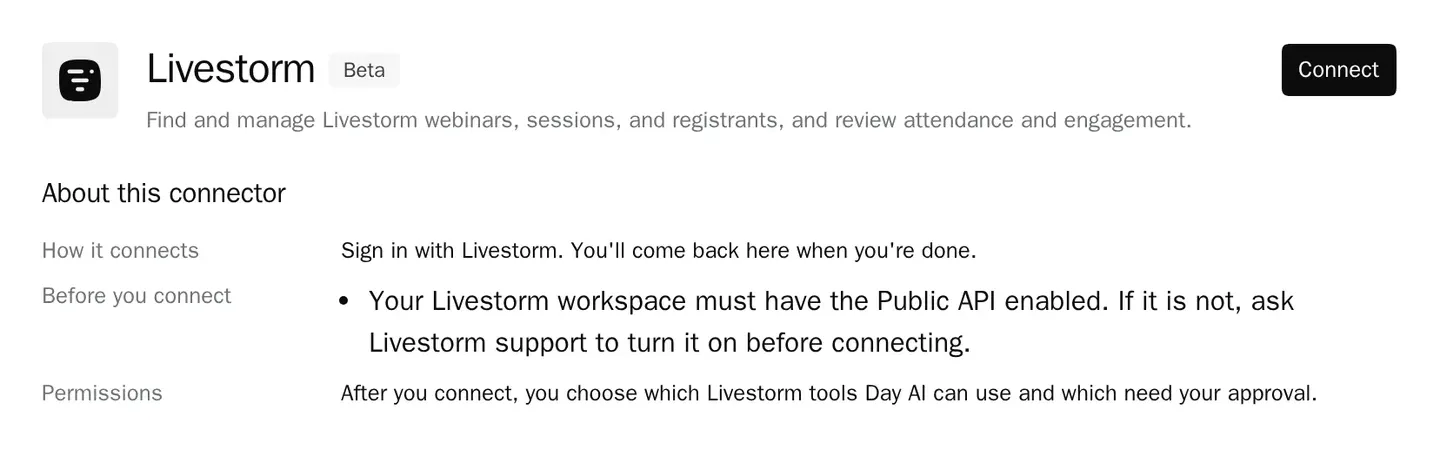
The Livestorm connector is in beta in Day AI. It takes a few minutes, and nobody needs to set anything up for the workspace first.
Step 1: Make sure Livestorm's Public API is on, then open Day AI
Your Livestorm workspace needs its Public API enabled before the connector can reach it. If it isn't on, ask Livestorm support to turn it on. Then, in Day AI, open Settings > Connectors and search for Livestorm, or find it in Browse connectors.
Step 2: Connect your own Livestorm account in Day AI
Click Connect and sign in to Livestorm. Your agent picks up Livestorm's tools for webinars, sessions, registrants, attendance and engagement. The connection is yours: your agent sees what your Livestorm account can see, and a teammate who wants the same thing connects their own account. If you'd rather ask than click, tell your agent "connect Livestorm" in chat and it sends you the sign-in link.
Step 3: Choose what your Day AI agent may do in Livestorm
Open the Livestorm connector to see its Tool permissions. Read tools start at Always allow, so your agent can pull a registrant list mid-conversation. Write tools, such as changes to registrants or sessions, start at Needs approval, so each one waits as an approval card in the chat with Approve and Deny. Turn Off anything you never want an agent to touch. The + menu in the chat composer turns Livestorm on or off for one chat.
Step 4: Ask your Day AI agent about your events
Now ask in plain words. "Who registered for next Tuesday's webinar from companies we're already talking to?" gives the owning reps a heads-up. "Who attended yesterday's session, and who was most engaged?" builds the follow-up list. "Which of my open deals had someone at any of our webinars this quarter?" puts events in the pipeline review. Your agent answers with the people, their companies and the conversations Day AI already has with them.
Step 5: Put the post-event report on a Day AI skill
For a recap that runs after every event, ask your agent to create a skill, for example a Monday report of last week's webinar attendees on open deals, and pick Livestorm in the skill's Connectors picker. The skill reads Livestorm through its agent owner's own sign-in, and only because Livestorm is picked there. Background runs can't pause for you, so give the skill the reading and the report, and keep changes to registrants in chat, where a person approves each one. See every Day AI integration and connector for the other tools a recap can draw on.
Where the homemade webinar follow-up breaks
- The export is stale by lunch. A CSV downloaded at 9 is out of date by the afternoon. In Day AI, the agent reads Livestorm live each time you ask, so the list is current.
- Every attendee gets the same email. A nurture sequence can't tell a champion from a student. In Day AI, the agent reads each attendee's deals and conversations before it drafts a word.
- Reps never hear about it. Attendance sits in a marketing tool the reps don't open. In Day AI, the agent drafts the note to the owning rep from the same chat where it built the follow-up list.
- Each new question needs a new report. A dashboard answers the questions it was built for. In Day AI, you ask a new question about any session in plain words and the agent uses the Livestorm tools it already has.