How to connect n8n to an AI agent: what GTM AI agents can do with n8n in Day AI
Updated
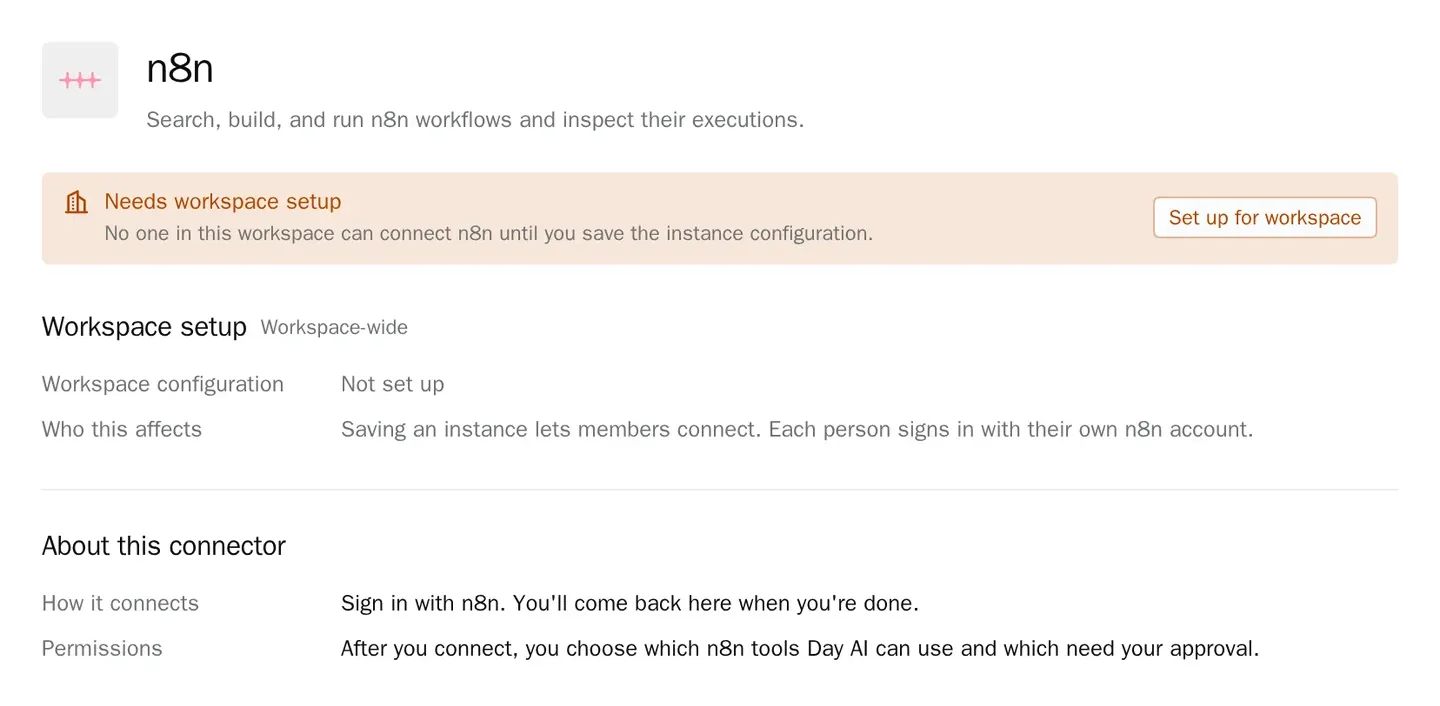
The short answer. To connect n8n to an AI agent, turn on Instance-level MCP in n8n for the workflows you choose and sign the agent in with your own n8n account, so GTM AI agents, the part of AI for GTM that acts, can find and run the automations you've already built and check how each run went. Day AI sets it up in two moves under Settings > Connectors: a workspace Owner saves your n8n Cloud instance name once, then each person clicks Connect and signs in, and their agent uses n8n's MCP server to search, build and run workflows and inspect their executions.
Let's say you run marketing operations at a cybersecurity company, and the weekly pipeline review starts in an hour. The new-signup count looks low, and the workflow that enriches and routes new signups lives in n8n. You open Day AI and ask your agent whether last night's runs went through. It searches your n8n workflows, finds the enrichment workflow, inspects the overnight executions and shows you three that failed, all at the same step: a field the form stopped sending after Tuesday's page change. You fix the form mapping in n8n, then ask the agent to run the workflow again for those three signups. An approval card names n8n and the run; you approve, and the agent checks the new executions: all three succeeded. One of the three already has an open deal in Day AI, so you create a task to make sure its rep follows up today. The review starts with the right count.
Where the usual answer goes wrong. Most advice about AI and automation stops at building the workflow. Once it's live, finding out why a run failed or starting one for a special case is still a trip into the editor for whoever built it. Day AI puts the agent on the outside, where your team asks questions: it knows the deals and conversations, it can find and run the workflow, and it can read the execution when something breaks, with a person approving runs and edits. The workflows you've already built in n8n are the asset here; nothing about them changes.
The find, run, inspect model for n8n, with Day AI
Most of the value in an n8n instance is workflows that already work. An agent needs three abilities to use them well.
- Find: the right workflow, by what it does. Nobody remembers the name of the routing workflow built last spring. In Day AI, your agent searches your n8n workflows and finds the one that fits the job you describe.
- Run: with a person's go-ahead. Running a workflow changes things in other systems. In Day AI, the agent proposes the run as an approval card in the chat, and it runs once you approve.
- Inspect: read the execution, not the logs. When a run fails, the question is which step and why. In Day AI, the agent inspects the workflow's executions in n8n and tells you where it stopped in plain words.
How to connect n8n to Day AI
The n8n connector works with n8n Cloud. For a self-hosted n8n server, see how to connect a custom MCP server to Day AI and add it as a custom connector.
Step 1: Turn on Instance-level MCP in n8n for Day AI
In n8n, open Settings > Instance-level MCP, turn it on, and select the workflows Day AI may access. Viewing workflow details, editing and running a workflow all need MCP access for that workflow. If your n8n instance restricts callback URLs, allow https://day.ai/mcp-oauth-redirect.
Step 2: Save your n8n Cloud instance name in Day AI (workspace Owner)
In Day AI, open Settings > Connectors, find n8n and choose Set up for workspace. Enter only the instance name: for my-team.app.n8n.cloud, enter my-team, with no URL or domain. There's no API key or OAuth app to paste.
Step 3: Each person connects their own n8n account in Day AI
Each person opens Settings > Connectors, finds n8n and clicks Connect, then signs in to n8n. The agent then sees what that person's n8n account can see, limited to the workflows with MCP access. Nobody shares a login.
Step 4: Set n8n's tool permissions in Day AI
Open the n8n connector's Tool permissions. Searching workflows and reading executions start at Always allow. Building, editing and running workflows start at Needs approval, so each one asks with an approval card first. Keep running at Needs approval while the team learns which workflows touch customer records.
Step 5: Ask your Day AI agent to find, run and inspect
Ask in chat. "Which of our n8n workflows enrich new demo requests?" finds it. "Run the renewal-reminder workflow for the accounts renewing next month" proposes the run. "Did last night's lead-routing runs all succeed?" inspects the executions. For a daily check, ask the agent to create a skill that reads yesterday's executions and reports failures, and pick n8n in the skill's Connectors picker; a skill's n8n calls run on their own, so leave runs and edits to chat, where you approve each one. For the other tools your workflows touch, see every Day AI integration and connector.
Where running n8n by hand breaks
- Only the builder knows which workflow to run. Everyone else files a request. In Day AI, the agent finds the workflow by what it does and proposes the run.
- Failures wait for someone to look. A failed run sits in the executions list until someone opens it. In Day AI, you ask what failed and the agent reads the execution for you.
- The run ignores the deal. A manual rerun doesn't check who the record belongs to. In Day AI, the agent reads the deal, the calls and the email around it first.
- Every new question is a new workflow. A workflow answers the case it was built for. In Day AI, a person asks a new question in plain words and the agent combines the n8n tools with everything else it knows.