How to connect a custom MCP server to an AI agent: what GTM AI agents can do with your own tools in Day AI
Updated
The short answer. To connect a custom MCP server to an AI agent, register it once with its HTTPS URL and sign-in method, let each person connect with their own access, and choose which tools wait for approval, so GTM AI agents, which turn AI for GTM into finished work, can use your own systems next to everything they know about the customer. Day AI does this with custom connectors under Settings > Connectors: someone with workspace-settings permission adds the server, each member connects to it, and their agent calls your tools live in chat, whether you use Day AI in place of your CRM or on top of Salesforce or HubSpot.
Say you run RevOps, and it's 2:30 on a Wednesday. Your engineers wrapped the internal pricing desk in a small MCP server last month: one tool looks up a customer's product usage, another opens a discount request. You added it to Day AI as a custom connector called Pricing desk, and the reps connected to it with their own logins. Now a rep is in a chat with their Day AI agent, an hour before a renewal call, asking whether the customer has earned the discount they asked for by email on Monday. The agent reads the email, pulls this quarter's usage from Pricing desk, and finds usage up across every team the customer added in the spring. It proposes a discount request with the usage attached. An approval card reads "Pricing desk · Create discount request". The rep reads it, approves, and the request is in the pricing desk's queue before the call. Nobody exported a spreadsheet.
Where the usual answer goes wrong. Custom MCP setups usually stop at "it connects". The server works, the tools show up, and then every tool runs on its own, from a shared login, with no record of who asked. Day AI treats your server like any built-in connector: each person connects with their own access, writes wait for a person to approve them, and the agent uses your tools in the same chat where it already knows the customer. You may already call your MCP server from a desktop assistant. That proved the tools work; this puts them in front of every rep, with guardrails.
Register, connect, govern: a custom MCP server with Day AI
A custom server needs three decisions, by different people, in this order.
- Register: one definition for the workspace. Every rep pasting a server URL into their own tool means as many configurations as reps. In Day AI, someone with workspace-settings permission adds the server once, with a name, its HTTPS URL and how it signs people in, and it appears for everyone with a Custom badge.
- Connect: each person with their own access. A shared token makes every call look like one account. In Day AI, members connect individually; with OAuth each person signs in to your server, and a bearer token is a shared service account you choose on purpose.
- Govern: decide what runs and what waits. A tool that changes your system shouldn't run unseen. In Day AI, the agent control plane sets each tool to Always allow, Needs approval or Off, and a write waits as an approval card that names your connector and the action.
How to connect a custom MCP server to Day AI
Step 1: Get your server ready for Day AI
Day AI connects to remote MCP servers over HTTPS. The server needs a public HTTPS URL, with no credentials or fragment in the URL itself. Decide how people sign in: OAuth if each person should use their own account in your system, a bearer token if the server should act as one shared service account, or none for a server that needs no sign-in. Self-hosted servers work the same way; a self-hosted n8n instance, for example, is added here as a custom connector.
Step 2: Add the custom connector in Day AI
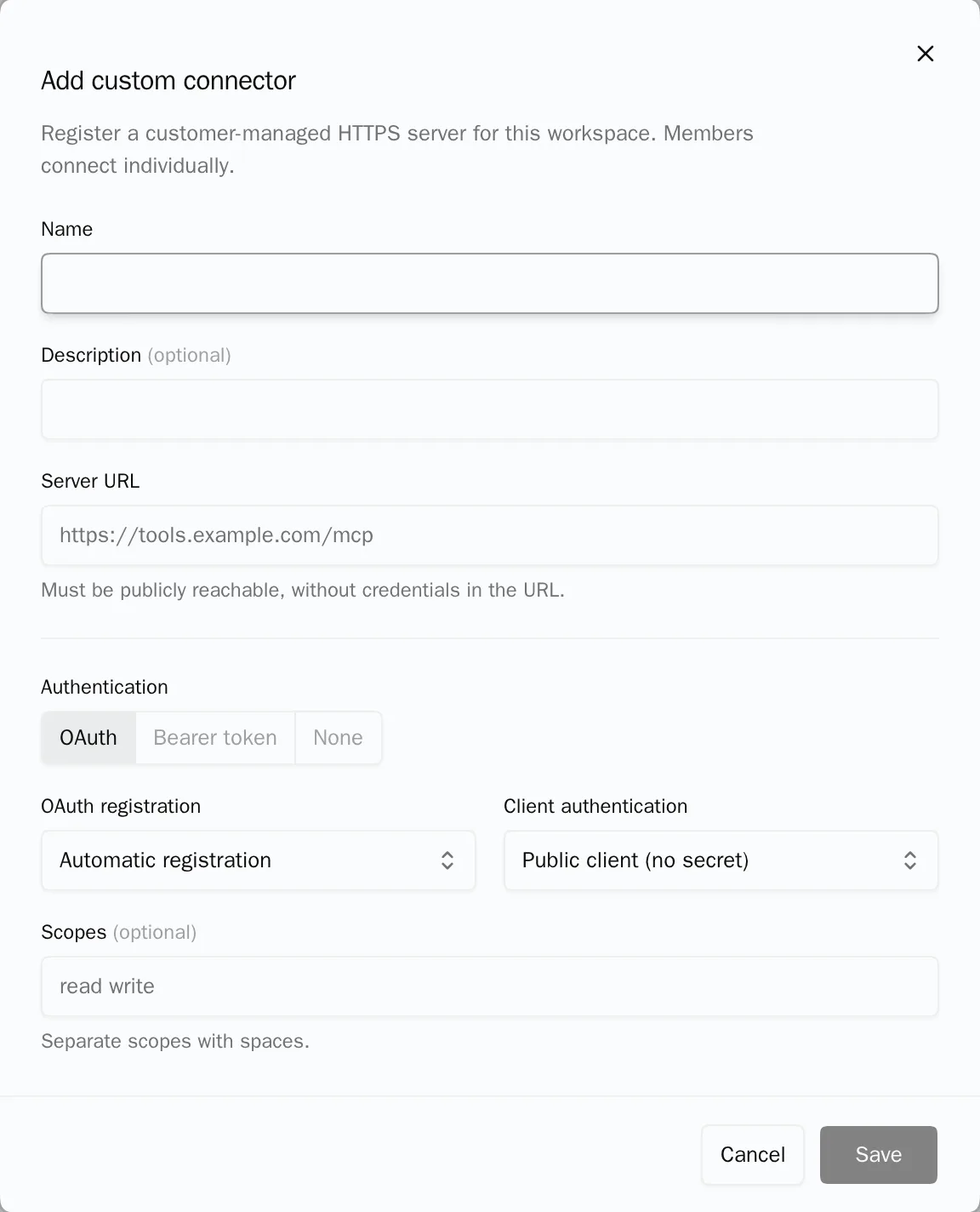
Open Settings > Connectors, then Browse connectors (or search for a name that has no match) and open Custom connectors. Choose Add custom connector, and enter a Name, the Server URL and an optional Description. Save stays off until the required fields are valid, and Day AI checks the configuration when you save. Adding a server takes workspace-settings permission, which the Owner role has by default; anyone else can ask an Owner.
Step 3: Choose how your server signs in Day AI users
Pick OAuth, Bearer token or None. For OAuth, choose Automatic registration, or Use your own OAuth client and enter its client credentials from the connector's setup after saving; you can also set the client-authentication method and space-separated scopes. For a bearer token, save the shared service-account token in the connector's setup after saving: everyone who connects works with that account's permissions. Later, renaming the connector or editing its description leaves connections alone, but changing the server URL or the sign-in method asks you to confirm, because it removes existing connections and saved credentials. Deleting the connector removes it for the whole workspace.
Step 4: Each member connects and sets tool permissions in Day AI
Each person finds the connector, with its Custom badge, under Settings > Connectors and clicks Connect, signing in if your server asks. Day AI loads the tools your server offers. Open the connector to see Tool permissions, grouped under Read-only and Write & delete, each with Set all. Read tools land under Read-only and start at Always allow; write tools start at Needs approval, and you can turn any tool Off. The + menu in the chat composer turns the connector on or off for a single chat.
Step 5: Use your tools in Day AI chats and skills
Ask your agent in plain words and it decides when to call your tools: "What's Orbit's usage this quarter, and does it match what their CFO said on the last call?" When a write needs approval, the card shows your connector's name and the action, with Approve and Deny. For recurring reads, ask your agent to create a skill and pick your connector in the skill's Connectors picker; a skill uses only the connectors picked there and runs with the connection of the agent's owner. Skill runs don't stop for approval cards, so give skills the lookups and reports, and keep writes in chat. For the full list of built-in options, see every Day AI integration and connector.
Where a homemade MCP setup breaks
- One shared token for everyone. It's quick for the first user and anonymous by the tenth. In Day AI, OAuth lets each member connect with their own account, and a shared token is an explicit choice.
- Every tool runs on its own. A desktop client that auto-approves tools will one day write something nobody meant to. In Day AI, write tools start at Needs approval, and anything risky can be Off.
- Answers without the customer. An agent that only sees your server knows your data and nothing about the deal. In Day AI, the agent calls your tools in a chat where it already has the customer's email, meetings and deals.
- Configuration drift. Ten people with ten copies of a server URL fall out of step. In Day AI, the server is registered once, and changing it is a confirmed, workspace-wide change.