How to connect Nooks to an AI agent: what GTM AI agents can do with Nooks in Day AI
Updated
The short answer. To connect Nooks to an AI agent, give the agent Nooks' MCP server through an OAuth app your Nooks admin creates, with each rep signing in to their own Nooks account, so GTM AI agents, the part of AI for GTM that keeps outbound moving, can see dials, sequences and coaching next to every email and meeting. In Day AI, a workspace Owner saves that Nooks app once under Settings > Connectors, a Nooks admin connects first to pick the Nooks workspace, and then each rep clicks Connect and their agent works with Nooks prospects, accounts, sequences, tasks, emails, calls and coaching insights.
Picture yourself managing a team of SDRs at a data-infrastructure company, and it's 4:05 on a Friday. One of your newer reps had a strong week on the phones but booked nothing, and you have a one-on-one with him on Monday. You ask your Day AI agent what happened. It reviews his Nooks calls and coaching insights for the week, then checks the email and meetings he shares with the team for the prospects he reached. Three of his best calls ended with "send me something," and two of those prospects have no email from him since. It proposes two Nooks tasks for him to send the follow-ups, and holds both until you say yes. You approve both and ask the agent to put the pattern into three bullet points for Monday. When he logs in, the tasks are already in his Nooks queue, and you have the one coaching point that matters.
Where the usual answer goes wrong. Most dialer coaching advice says to listen to more calls and score them. Scoring the call misses the half of the story that happens after it: the promised email, the meeting that never got booked. Day AI puts each Nooks call next to what happened after it, the email that did or didn't go out and the meeting that did or didn't get booked, and proposes the fix for a person to approve. If you already run weekly call reviews, bring that after-the-call view into them.
The app, admin, rep order for Nooks, with Day AI
Nooks setup is three hand-offs, and it only works in this order.
- App: a Nooks OAuth app for the company. The agent needs an app your own Nooks admin controls. In Day AI, a Nooks admin creates the app, and a Day AI workspace Owner saves its Client ID and Client Secret under the connector's Set up for workspace.
- Admin: the Nooks admin connects first. Someone has to point the connection at the right Nooks workspace. In Day AI, the Nooks admin connects before anyone else and selects the intended Nooks workspace.
- Rep: each rep connects as themselves. Every rep's agent should act with that rep's own Nooks account. In Day AI, each rep clicks Connect and signs in, and Nooks write tools start at Needs approval so the rep confirms every change.
How to connect Nooks to Day AI
Step 1: Create the Nooks OAuth app (Nooks admin), then save it in Day AI (workspace Owner)
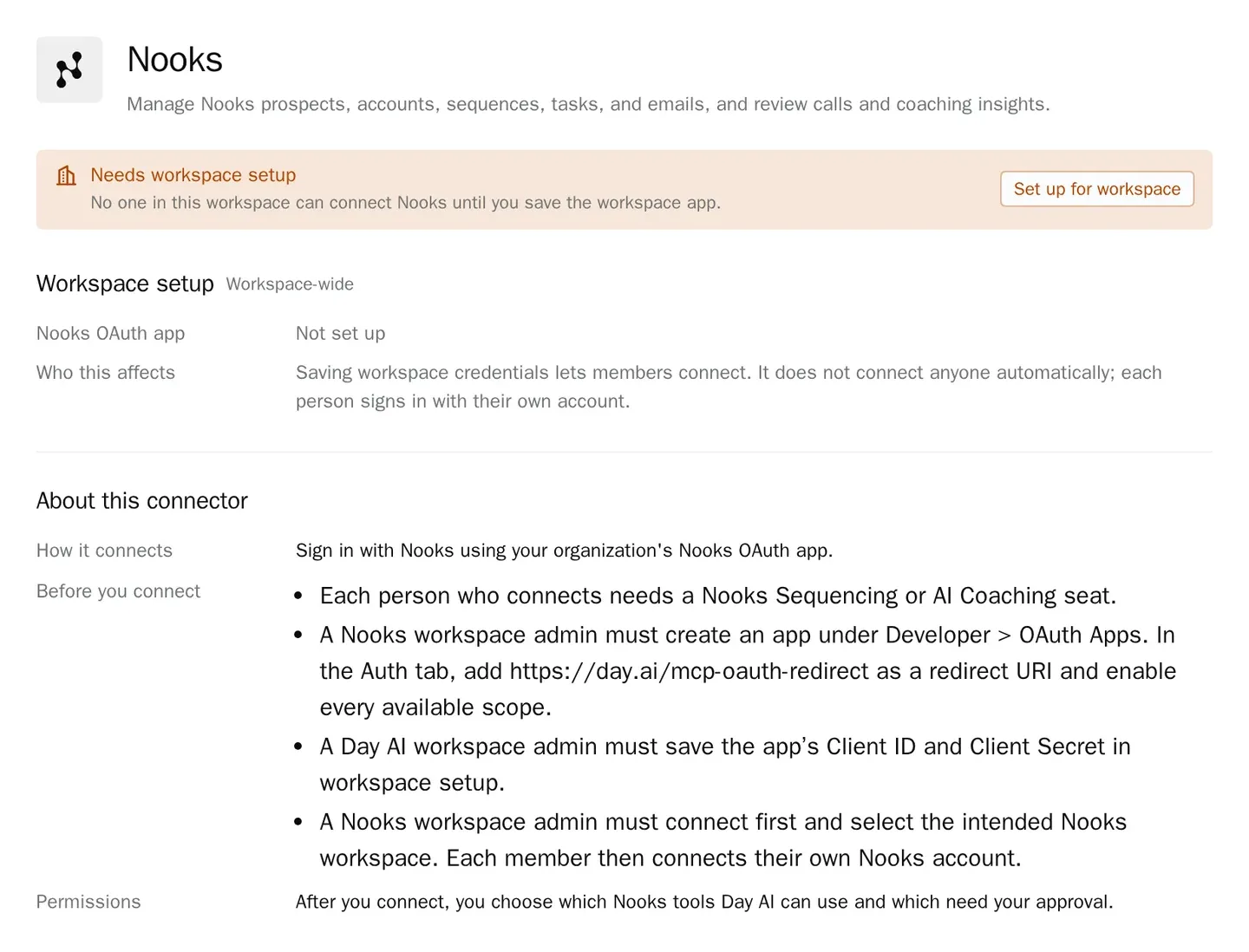
Each person who connects needs a Nooks Sequencing or AI Coaching seat; the setup dialog in Day AI lists Nooks' requirements. A Nooks workspace admin creates an app under Developer > OAuth Apps in Nooks. In the app's Auth tab, add https://day.ai/mcp-oauth-redirect as a redirect URI and enable every available scope. Then a Day AI workspace Owner opens Settings > Connectors, finds Nooks, chooses Set up for workspace, pastes the app's Client ID and Client Secret (both are required) and saves. Until then, Nooks shows Needs workspace setup to people who can configure it and Admin setup required to everyone else.
Step 2: The Nooks admin connects first in Day AI
Before the team connects, the Nooks workspace admin opens Settings > Connectors in Day AI, clicks Connect on Nooks, signs in and selects the intended Nooks workspace. Do this before anyone else connects, because it sets which Nooks workspace the connection points at.
Step 3: Each rep connects their own Nooks account in Day AI
Each rep then finds Nooks in Settings > Connectors, clicks Connect and signs in with their own Nooks account. The app is shared; the login is not. Each rep's agent works with that rep's Nooks account, and disconnecting one rep leaves everyone else connected.
Step 4: Set Nooks tool permissions in Day AI
Under Tool permissions, reading calls, coaching insights and sequences can stay at Always allow. Tools that change prospects, sequences, tasks or emails start at Needs approval; keep them there, and set anything the agent should never touch to Off.
Step 5: Ask your Day AI agent to work with Nooks
Try "Which prospects in my Nooks sequences have already replied by email?", "What did this week's Nooks coaching insights say about my discovery calls?" or "Create a task in Nooks to call back the Acme CFO on Tuesday." Reads come straight back; the task waits on an approval card. For a weekly team coaching summary, ask your agent to build a skill and pick Nooks in its Connectors picker. The skill runs on its agent owner's Nooks connection, and disconnecting that account removes the skill's access, so build it on the manager's agent and keep task and sequence changes in chat. Nooks is one of every Day AI integration and connector the skill can draw on.
Where a homemade Nooks workflow breaks
- Coaching from the call alone. A scored call says nothing about the follow-up that never went out. In Day AI, the agent reads the email and meetings after the call before it suggests anything.
- Nobody chose the workspace. A homemade connection points at whichever Nooks workspace its builder happened to use. In Day AI, the Nooks admin connects first and selects the intended Nooks workspace.
- Shared logins. One account running the automation for every rep hides who did what. In Day AI, each rep connects their own Nooks account.
- Tasks created in bulk, unseen. A script that drops tasks into queues buries reps in noise. In Day AI, each Nooks task waits on an approval card until a person approves it.