Enrichment and 3 more quality of life improvements
· Christopher O'Donnell and Michael Pici
We've been hard at work delivering quality of life improvements throughout Day.ai. Here's what’s new:
Better person and organization data
We've improved our data enrichment to provide more accurate and comprehensive information about people and organizations. We added additional enrichment providers to maximize coverage, reduced incorrect enrichments, and made updating records seamless.
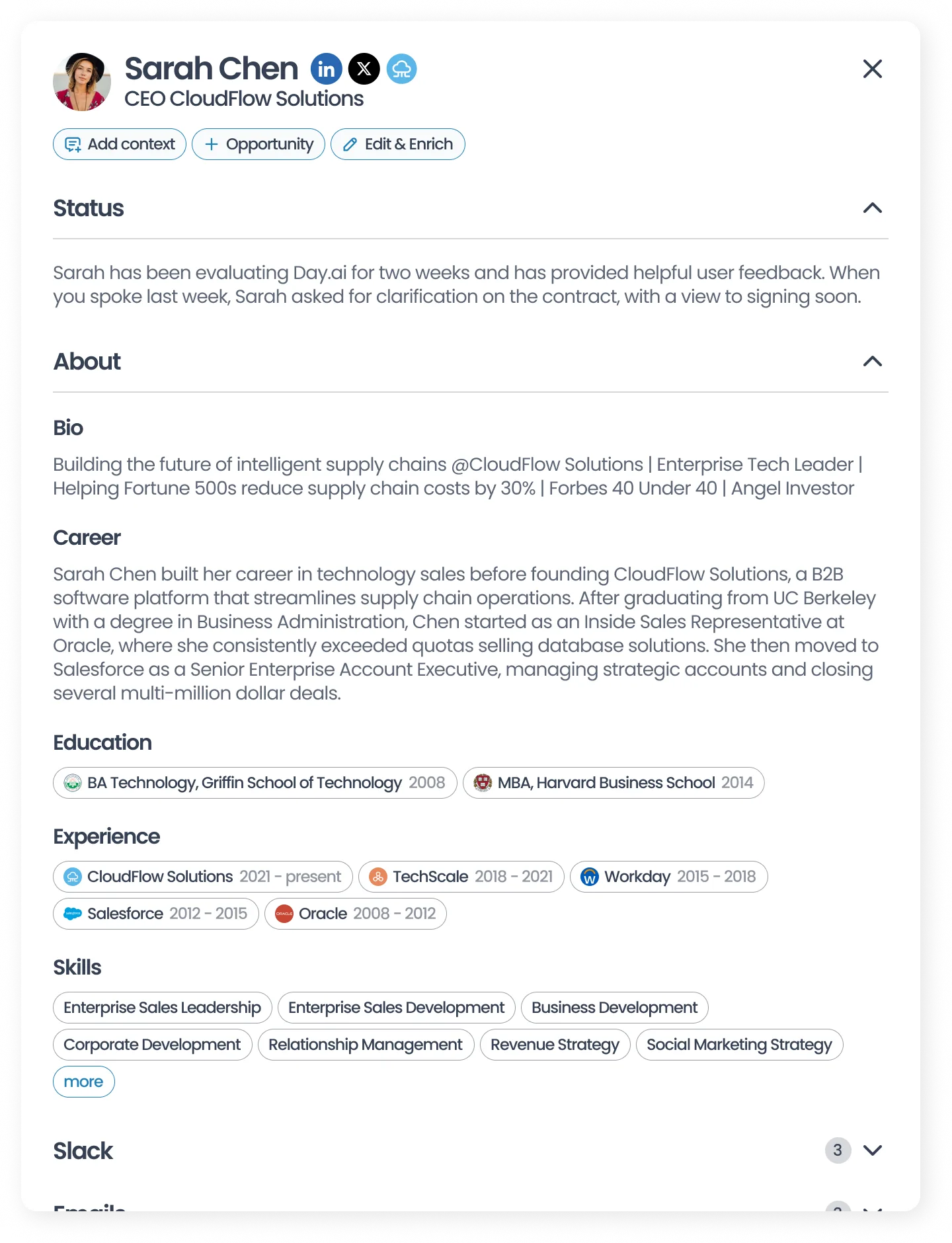
Person enrichment in Day.ai CRM
To explore enrichment, click on a person or organization record in Day.ai and then select “About”.
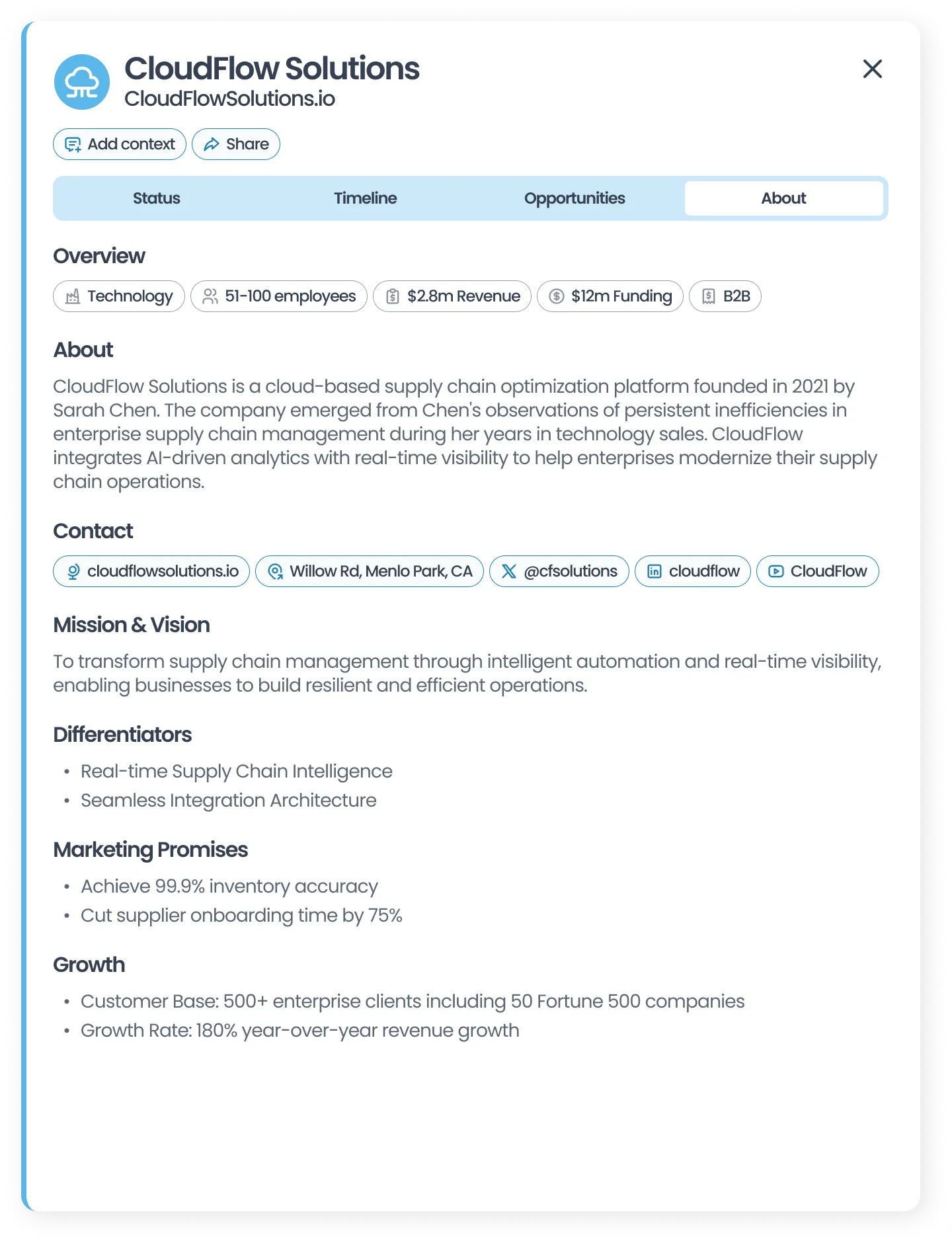
Organization enrichment in Day.ai CRM
Expanded language support for transcription
Day.ai now supports meeting transcription in 20+ languages, making it easier to capture and understand conversations with customers worldwide.
Whether you're speaking English, Spanish, French, German, or many other languages, Day.ai will automatically detect and transcribe your conversations accurately.
Note: Day.ai understands emails and meetings in 20+ languages, but all summarization will remain in English.
Improved handling for rescheduled meetings
Your calendar is dynamic - meetings move around all the time.
Now, Day.ai automatically follows these changes, whether you're starting early or rescheduling for later. Just update your calendar invite, and we'll be there to capture the conversation.
No more missing recordings when meeting times move - Day.ai now stays in perfect sync with your shifting schedule.
Pro Tip: Disable the “This meeting is being recorded” voice in Zoom
Zoom now offers a setting to make their recording consent flow less jarring when you begin recording a meeting.
Here’s how to turn off the “This meeting is being recorded” voice on your Zoom meetings:
- Go to Zoom.com and click “My Account”
- In the left navigation, click “Settings”
- On the horizontal navigation, click “Recording”
- Scroll to the bottom of the page and you’ll see a setting for “Recording Notifications, Zoom Clients”
- Switch the setting to “No one”
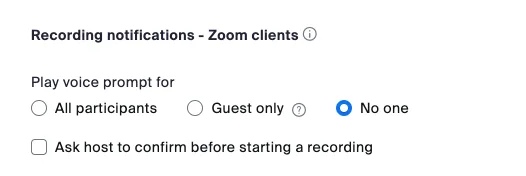
Update Zoom settings to change meeting recording announcement